
Accounting: How to Sync and Verify Invoices and Payments
Sync an order to create its invoice in your accounting platform. You can also sync payments already recorded on the order and apply them to that invoice.
Start with one representative order. Verify the invoice and any intended payment in your accounting platform before syncing more transactions.
In this guide
1. Prepare the first order
Choose an order that includes the details your team commonly uses, such as shipping, discounts, sales tax, or a recorded payment.
Before syncing:
- Open Integrations and confirm that the accounting connection's Health is Ready.
- Open the connection's Overview and resolve any required items under Needs your attention.
- Return to Orders and confirm that the representative order shows SYNCABLE.
If setup is incomplete, follow Set up accounting sync. If the order is MAPPABLE, follow Map customers, products, and payment methods.
2. Understand accounting status
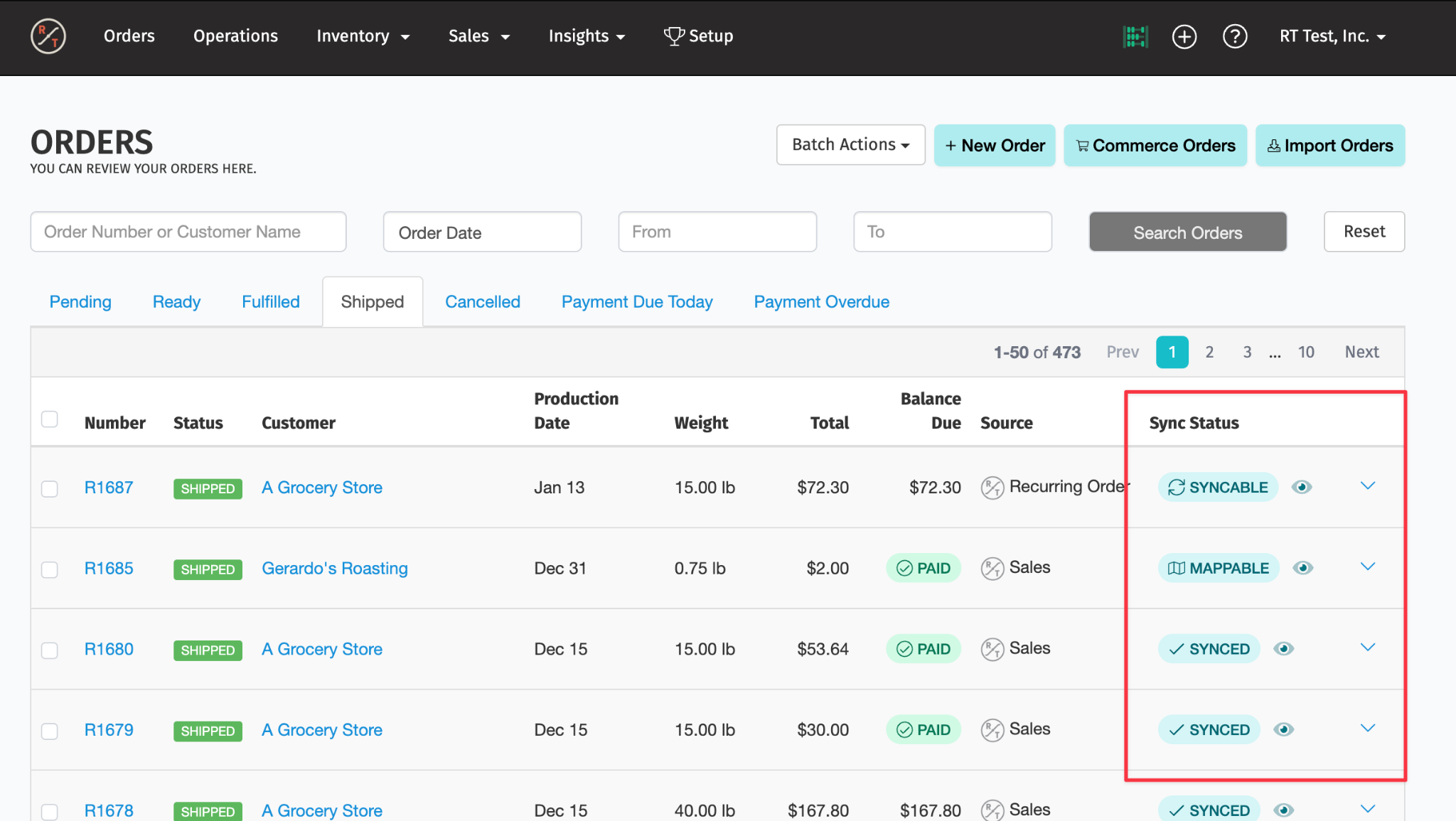
Each order displays an accounting sync status in the rightmost column of the Orders page.
| Status | What it means | Next action |
|---|---|---|
| SYNCABLE | The order is ready to submit. Its required mappings are complete, and RoasterTools found no other blocker. | Sync the order when you are ready to create the invoice in your accounting platform. |
| MAPPABLE | The customer or one or more product variants still need a mapping. | Open the order's mapping panel and add the missing mappings. |
| QUEUED | RoasterTools submitted the order, and it is waiting to be processed. | Wait for the status to change. QuickBooks Online and Xero continue automatically. For QuickBooks Desktop, run Web Connector. |
| SYNCED | The invoice was created successfully in your accounting platform. | Open the invoice in your accounting platform and verify it. |
| FAILED | The last accounting sync returned an error. | Read the error, correct its cause, and retry the order. |
3. Sync invoices
Use any of the methods below. RoasterTools queues each submitted order. When it creates the invoice, the order's accounting status changes to SYNCED. A QuickBooks Desktop order remains QUEUED until Web Connector runs.
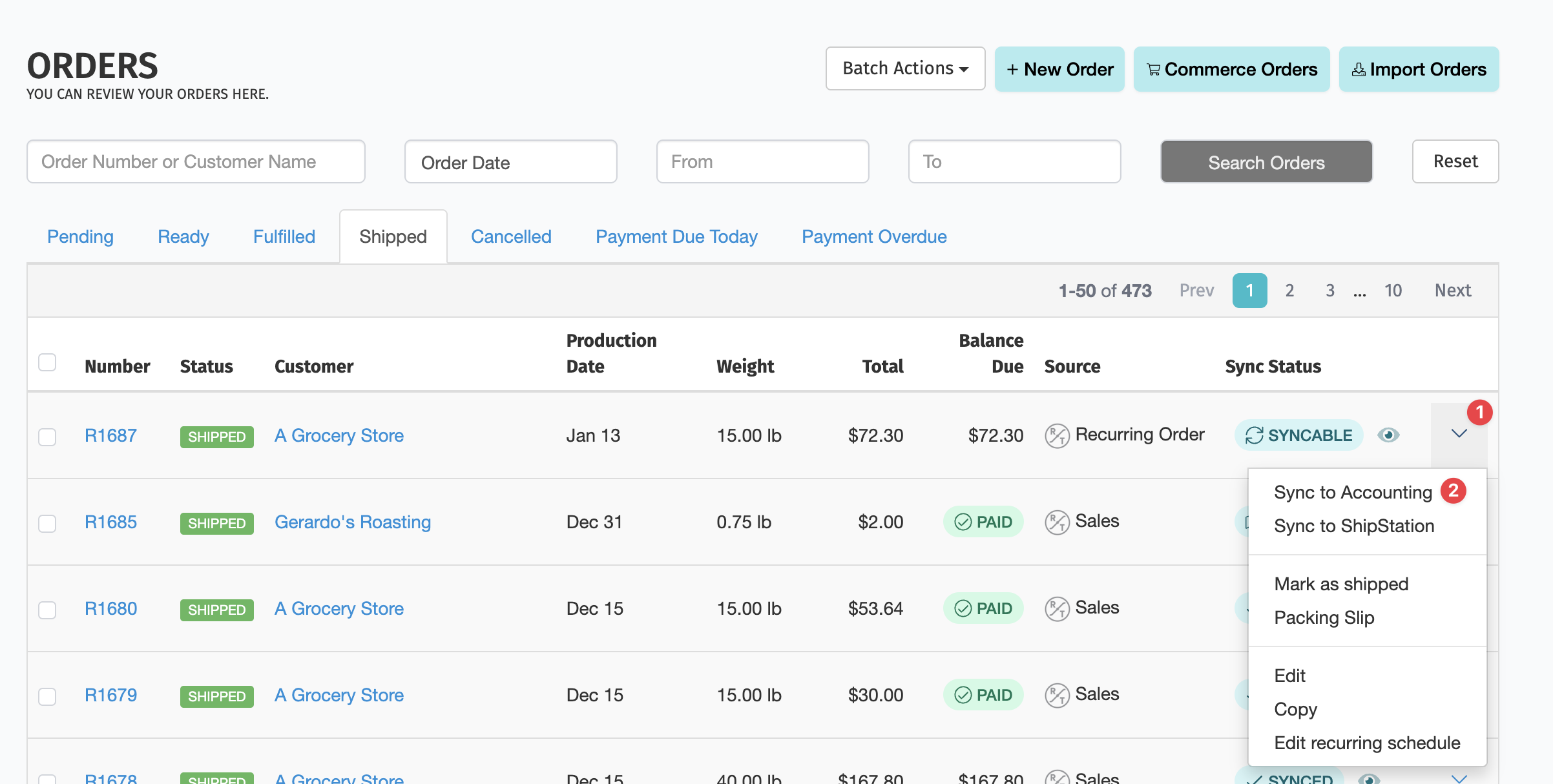
Option A: Sync one order from the Orders list
Open the menu next to the order's accounting sync status, then select Sync to Accounting.
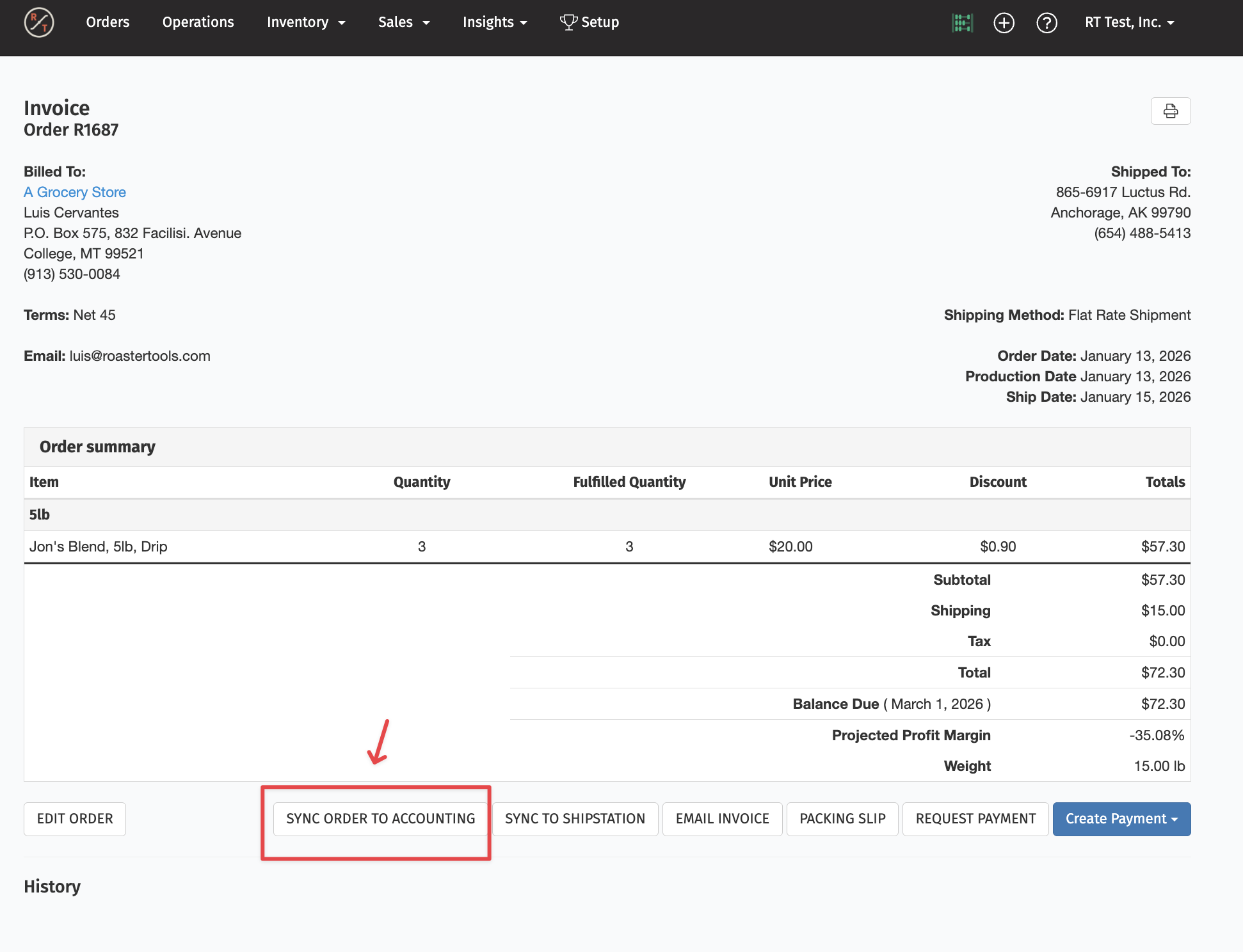
Option B: Sync from inside an order
Open the order, then select Sync to Accounting.
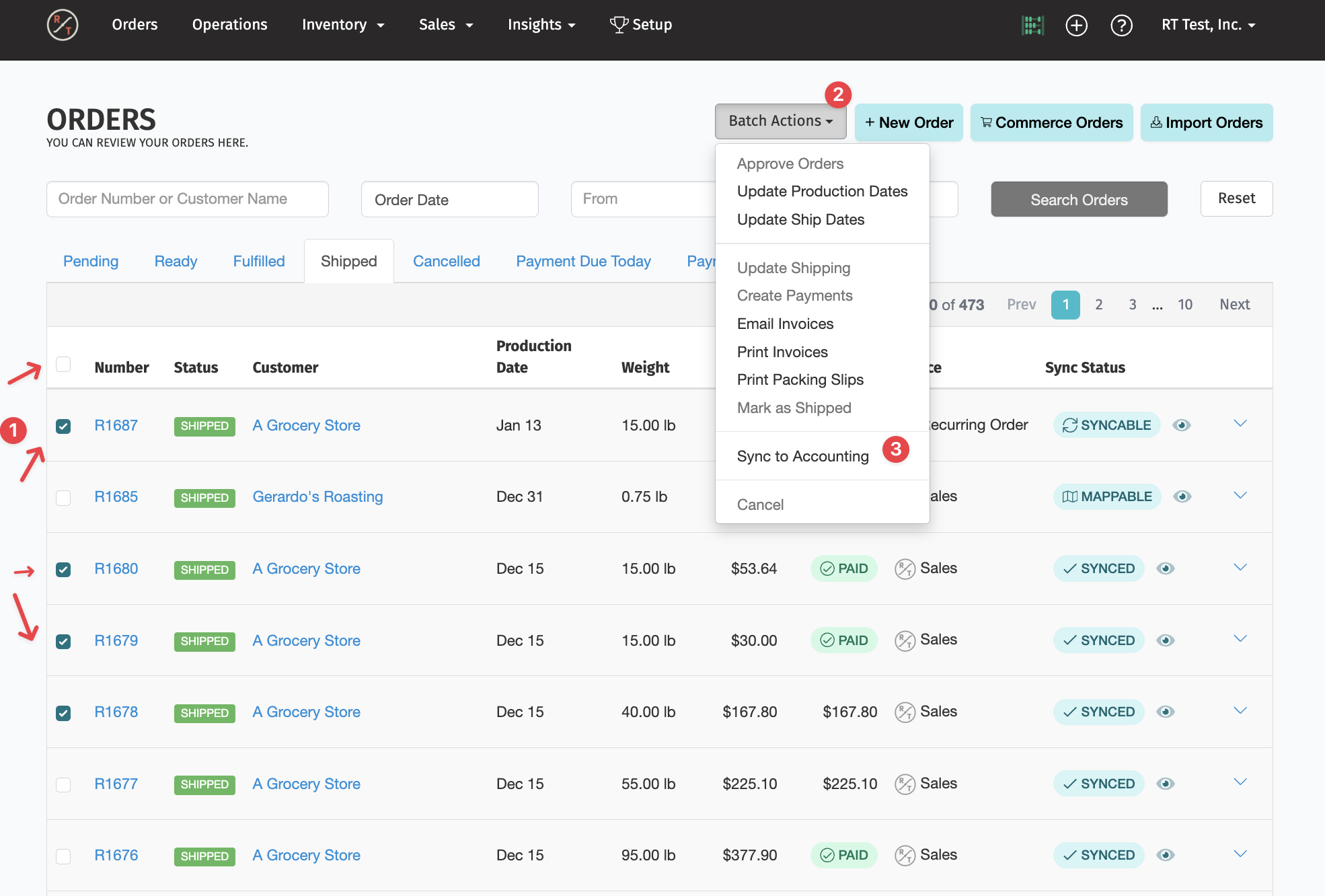
Option C: Sync several orders
- From Orders, select individual orders with their checkboxes. To select every visible order on the page, open Batch Actions and choose Select All.
- Open Batch Actions.
- Select Sync to Accounting.
QuickBooks Desktop: Web Connector timing
QuickBooks Desktop processes queued invoices and payments when Web Connector runs. When RoasterTools queues an invoice and payment together, Web Connector processes them in two stages: one run creates the invoice, and the next run applies the payment.
When Auto-Run is on:
- The order's accounting status changes to QUEUED.
- The next scheduled run creates the invoice, and the order's accounting status changes to SYNCED.
- If RoasterTools also queued a payment for the order, that payment remains QUEUED on the Payments page after the invoice run.
- The following scheduled run applies the payment. No manual action is required while Auto-Run continues on its configured schedule.
When Auto-Run is off, or you want to sync immediately:
- Open QuickBooks Web Connector, select RoasterTools, and choose Update Selected to create the invoice.
- If RoasterTools also queued a payment, choose Update Selected a second time to apply it.
4. Sync payments
RoasterTools can sync payments collected through RoasterPay or Stripe, as well as payments recorded manually. Supported payment types include card, bank, check, cash, wire, and external payments.
Before syncing payments, open Settings → Payments and confirm where RoasterTools should record them. A payment synced separately also requires its invoice to already exist in your accounting platform. If you have not made these choices, follow Set up accounting sync.
If the accounting platform is not connected yet, follow the applicable guide:
Choose how payments sync
Create payments with synced invoices determines whether an invoice sync also queues payments:
- When it is on: Syncing an order creates the invoice in your accounting platform first, then queues payments already on the order that are ready to sync.
- When it is off: Syncing an order creates the invoice without queuing payments.
- When the order has not been paid: The invoice is created with an open balance.
- For a payment recorded later: After the invoice exists in your accounting platform, sync the payment from the order or Sales → Payments.
Payment timing matters. Only payments already on the order when the invoice sync begins can queue with it. Sync later payments separately.
When an invoice and payment queue together for QuickBooks Desktop, Web Connector records them on separate runs. See QuickBooks Desktop: Web Connector timing.
QuickBooks Online and QuickBooks Desktop can include a mapped accounting payment method when a payment syncs. Xero does not currently offer a payment-method mapping workspace in RoasterTools. See Map payment methods when available.
Distinguish payment and sync statuses
Open Sales → Payments to review payments collected through RoasterTools and payments recorded manually. Each row shows the customer, order amount, fees, and payment method.

Each row has two different statuses:
- Payment status shows whether the customer's payment has completed.
- Sync status shows whether RoasterTools recorded the payment in your accounting platform.

Payment statuses
| Status | Meaning |
|---|---|
| Pending | The payment has started but is not complete. A bank transfer through the Automated Clearing House (ACH) network may remain pending while the bank processes it, then change to Succeeded or Failed. |
| Authorized | The amount was authorized, but payment processing is not complete. |
| Succeeded | The payment completed successfully. |
| Failed | The payment did not complete. |
| Canceled | The payment was canceled before completion. |
| Refunded | The payment was refunded. |
| Disputed | The customer disputed the payment. |
These statuses describe the customer's payment. They do not show whether it synced to your accounting platform.
Failed ACH notifications: Make sure notifications for failed Automated Clearing House (ACH) payments are enabled in your profile settings. See Set up RoasterPay.
Accounting sync statuses
| Status | Meaning |
|---|---|
| SYNCABLE | The payment is ready to sync but has not been submitted. |
| QUEUED | RoasterTools submitted the payment, and it is waiting to be processed. |
| SYNCED | The payment was recorded successfully in your accounting platform. |
| SKIPPED | The payment was intentionally excluded from accounting syncs. |
| FAILED | The accounting sync returned an error. |
These statuses describe only the payment sync. The invoice has its own accounting sync status on the order.
Find payments that are ready to sync
- Open Sales → Payments.
- Select Add Filter → Sync Status → SYNCABLE.
- Select Apply.
This shows payments that are ready to submit to your accounting platform.

You can also filter by payment status, order number, payment method, or payment details, and search by customer name.
Sync one payment
If you record a payment after the invoice is already in your accounting platform, RoasterTools does not sync the payment automatically. Sync it separately.
From the order
- Open the order.
- If the invoice is not yet in your accounting platform, sync the order first. When Create payments with synced invoices is on, RoasterTools can also queue payments already on the order when the invoice sync begins.
- If the order shows SYNCED but the payment has not synced, select Sync Payment to Accounting. Depending on your connection, the action may include the accounting platform's name.
- Review the payment's sync status.
From the Payments page
- Open Sales → Payments.
- Find the payment.
- Open its three-dot menu.
- Select Sync to Accounting.
- Review the payment's sync status.

The payment shows QUEUED while it is processed, then changes to SYNCED when the sync succeeds or FAILED when RoasterTools encounters an error. For QuickBooks Desktop, it remains QUEUED until Web Connector processes it.
If Sync to Accounting is unavailable: First confirm that the invoice exists in your accounting platform. The action is also unavailable while the payment is QUEUED, so wait for its sync status to change. For QuickBooks Desktop, complete the required Web Connector run. If the payment stays QUEUED, see Manage and troubleshoot payments. If you expected the invoice sync to include the payment, confirm that Create payments with synced invoices was on and the payment was already on the order when the sync began.
Sync several payments
- Open Sales → Payments.
- Filter by sync status SYNCABLE to show payments that are ready for their first submission.
- Select individual payments, or use the checkbox at the top of the page to select all visible payments.
- Open the bulk action menu and choose Sync to Accounting.
Bulk sync submits payments that show SYNCABLE. It can also retry payments that show FAILED after you correct the reported error.
RoasterTools does not submit payments that are already SYNCED, QUEUED, or still SKIPPED. To include a skipped payment, choose Mark as Syncable, wait for its status to change to SYNCABLE, then include it in a later bulk sync.

RoasterTools submits each selected payment separately. Each payment shows QUEUED until it is processed. For QuickBooks Desktop, the selected payments remain QUEUED until Web Connector processes them.
Payments remain separate. A bulk action does not combine the selected payments into one accounting payment.
Understand the completion email
After a bulk payment sync, RoasterTools sends an email with the subject Bulk sync completed. The email includes the number of failed payments and separates the results:
| Result | Meaning |
|---|---|
| Sync results | Payments RoasterTools attempted. For each failed payment, the email includes the order number, customer, payment type, amount, and error. |
| Not attempted | Contains the Already synced and Marked as skipped groups. Neither group requires action. |
Use the email's View Failed Payments link to open payments that need correction.
If a result says Already being synced by another task, another sync has already queued the payment. Wait for its sync status to change instead of submitting another retry.
Sync partial payments
For QuickBooks Online, QuickBooks Desktop, and Xero, you can sync each partial payment before the order is fully paid. Each payment:
- appears as its own transaction in Sales → Payments;
- syncs for its own amount;
- is applied to the same invoice in your accounting platform; and
- reduces the open balance on that invoice.

For example, when a customer pays $300 and later pays $700:
- the $300 payment can sync for its own amount;
- the later $700 payment can sync separately; and
- both payments reduce the balance of the same invoice.
If the first payment is on the order when the invoice sync begins and Create payments with synced invoices is on, RoasterTools can queue that payment with the invoice. Sync any payment recorded later separately.
Whether you sync partial payments individually or with a bulk action, each remains a separate payment record.

For instructions on collecting part of an order balance, see Collect a partial payment.
Convenience-fee changes after invoice sync
Using convenience fees? Adding or changing a convenience fee changes the order total. If the invoice already synced, the payment won’t sync until the invoice in your accounting platform matches. Select the customer’s credit card before you sync the invoice. If the invoice already synced, add the convenience fee to it in your accounting platform, then sync the payment. See Convenience fees.
If the customer pays the entire order using the same payment method that generated the convenience fee, no accounting adjustment is needed.
When a customer makes a partial card payment, RoasterTools adds the actual convenience fee for that payment and an estimated convenience fee for the remaining balance. If the invoice syncs at that point, its total includes the estimate.
If the customer later pays the remaining balance using a method without a convenience fee, such as check, RoasterTools removes the unused estimate from the order. RoasterTools does not automatically update an invoice that already synced, so the invoice total in your accounting platform can remain higher than the completed order total.
Keep the totals aligned. When RoasterTools removes an unused convenience-fee estimate after the invoice syncs, adjust the invoice in your accounting platform so its balance matches the completed order.
See Convenience fees for setup and general fee behavior.
Manage and troubleshoot payments
Retry a queued payment
For QuickBooks Desktop, first complete the Web Connector run that applies the payment. Wait for the next Auto-Run, or choose Update Selected when Auto-Run is off. See QuickBooks Desktop: Web Connector timing.
Before retrying any queued payment, check whether it already appears on the invoice in your accounting platform. If it does, do not retry it.
There is no fixed wait time that confirms a queued request has stopped processing. If the payment is not in your accounting platform and its sync status does not change, contact support@roastertools.com. Support may ask you to use Force Sync to Accounting once after confirming that the request is stuck.
If support asks you to use Force Sync:
- Open Sales → Payments and find the payment.
- Open its three-dot menu.
- Select Force Sync to Accounting.

Do not submit repeated retries. A message stating that the payment is already being synced means no additional action is required.
Skip a payment
Use Skip Selected when a payment was already entered manually in your accounting platform or should not sync. Its sync status changes to SKIPPED, and RoasterTools excludes it from future accounting syncs.

Restore a skipped payment
Select the payment and choose Mark as Syncable. Once its status changes to SYNCABLE, submit it individually or include it in a later bulk sync.

A payment failed
Open the failed payment and read the reported error. Correct that problem before retrying. Also confirm that the invoice still exists in your accounting platform and the connection is healthy.
The accounting payment method is missing
When your connection supports payment-method mappings, open Mappings → Payment methods and map the RoasterTools payment type to an accounting payment method. This optional mapping does not control the bank account where the payment is recorded.
A payment did not sync when it was recorded
If the invoice is already in your accounting platform, recording another payment does not sync it automatically. Sync the payment from the order or Sales → Payments.
Related task: reconcile RoasterPay payouts
Payment syncing applies customer payments to invoices. Reconciling the combined payout that reaches your bank is a separate task:
5. Verify the invoice and payment
RoasterTools creates the invoice in your accounting platform using the order's mapped customer and products. After the representative order shows SYNCED, open the invoice and review the details your team relies on:
- customer;
- invoice number and transaction date;
- products, quantities, prices, and the accounting item mapped to each product;
- how discounts and shipping appear;
- the sales tax total and how it appears;
- due date, purchase order, and notes when used;
- accounts, classes, or locations when used; and
- any payment that should have synced, including its accounting payment method when mapped.
Customer terms in RoasterTools determine the invoice due date in your accounting platform. For the platform-specific behavior of internal and external order notes, see How order notes sync to accounting.
If the representative invoice and any intended payment appear as expected in your accounting platform, use the same sync actions for later orders and payments.
6. Troubleshoot a sync
The order is MAPPABLE
Open the order's mapping panel with the eye icon to see which customer or product mapping is missing. Follow the mappings guide. After you save the mappings required for that order, its status changes to SYNCABLE.
A required setting needs attention
Open the accounting connection's Overview and follow the link under Needs your attention. Save the required setting, then return to the order.
The order stays QUEUED
QuickBooks Online and Xero continue processing automatically. For QuickBooks Desktop, select Update Selected in Web Connector or wait for the next Auto-Run.
Before retrying, check whether the invoice already exists in your accounting platform. If it does, do not use Force Sync to Accounting, even if the order still shows QUEUED.
There is no fixed wait time that confirms a queued request has stopped processing. If the invoice is not in your accounting platform and the order's status does not change, contact support@roastertools.com before using Force Sync to Accounting.
The invoice sync failed
Open the failed order and read the specific error. Correct that problem before retrying. If the error involves sales tax, follow the QuickBooks Online sales-tax guide or the QuickBooks Desktop sales-tax guide.
QuickBooks Desktop invoice failures on orders with sales tax are commonly caused by incomplete sales-tax setup in QuickBooks Desktop. If that setup will take time and invoice syncing needs to keep moving, contact support@roastertools.com.
QuickBooks emailed the invoice automatically
RoasterTools creates the invoice in QuickBooks Online. QuickBooks controls whether it emails that invoice to your customer.
To stop QuickBooks from automatically emailing future synced invoices:
- Log in to QuickBooks Online as a Company Admin.
- Open Settings → Account and settings → Sales.
- Open Invoice Payments.
- Turn off Automatically send imported invoices, then save.
Automatic invoice reminders is a different setting. If you do not see Invoice Payments, ask a QuickBooks Company Admin to check. Turning this setting off does not recall an email QuickBooks already sent.
The order changed after its invoice synced
Syncing the order again will not update an invoice that already exists in your accounting platform. Update that invoice directly in the accounting platform, then correct the relevant RoasterTools setting or mapping before syncing later orders.
You can still sync a payment recorded later to the existing invoice, as long as the invoice total in your accounting platform matches the order. If the change affected the total, such as a convenience fee added after the invoice synced, update the invoice first. Otherwise the payment won’t sync.
Connection health says Reconnect
A sync fails when RoasterTools can no longer access your accounting platform. Open Integrations and check the Health column. Ready means the integration is working normally. Reconnect means the connection must be authorized again, and RoasterTools sends an email with the error and a direct link to the affected record.
Learn More: Reconnecting works the same way for accounting and commerce integrations. See Accounting and Commerce: Troubleshooting Connection Health and Status for the reconnection steps, the failure notifications, and why connections disconnect.
If an invoice or payment still needs attention after the connection returns to Ready, return to the troubleshooting steps for that invoice or payment in this guide.
Still stuck? Contact support@roastertools.com. Include the RoasterTools order number, your accounting platform, and the exact error message. If an invoice or payment was created in your accounting platform, include its reference too.