
Accounting: How to Map Customers, Products, and Payment Methods
A mapping is a saved connection between a record in RoasterTools and the matching record in your accounting platform. Before an order can sync, its customer and every product variant on the order must be mapped. You can set up mappings in advance or map only the customer and product variants needed by one order.
In this guide
- Map customers
- From the Order: Map from the order that needs attention.
- One customer: Map or create the accounting customer from the customer edit page.
- Several customers: Use the connection's Mappings page.
- Map product variants
- From the Order: Map the product variants needed by one order
- From a Product: Map Variants from a Product
- Create New: Create a New Item in Accounting
- Map payment methods when available
- Review mapping questions
1. Map customers
A customer mapping makes sure invoices sync to the correct customer record in QuickBooks Online, QuickBooks Desktop, or Xero.
Choose the path that matches what you are doing:
- Ready to sync one order: Map from the order that needs attention.
- Reviewing one customer: Map or create the accounting customer from the customer edit page.
- Setting up several customers: Use the connection's Mappings page.
Whichever path you use, the saved customer mapping applies to later orders for that customer.
New or inactive accounting customers and items
New accounting customers and items appear in RoasterTools automatically. If a record you just created is not available yet, allow up to 30 minutes and check again. There is no connection-wide refresh action.
An INACTIVE badge appears beside records that are inactive or archived in the accounting platform. Do not select an inactive customer or item for a new mapping because it can cause the invoice sync to fail. Reactivate the record in the accounting platform or choose an active record.

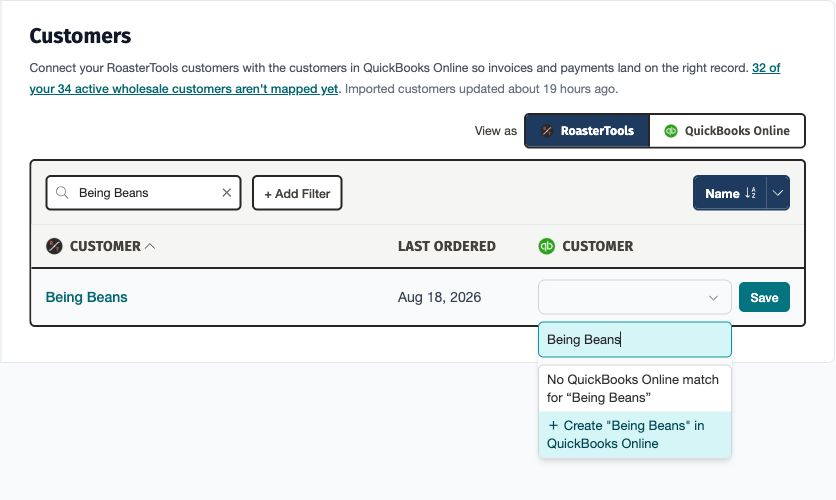
Manage customer mappings from the accounting connection page
- Open Integrations and select your accounting connection.
- Open Mappings → Customers.
- Under View as, choose whether to start with RoasterTools customers or customers from your accounting platform.
- Search or filter for the customer you need.
- Select the matching customer from the other system. If you start with a RoasterTools customer and no match exists, select the create option, such as + Create "Being Beans" in QuickBooks Online.
- Select Save.
Want to start with customers from your accounting platform? Importing is optional. See Import and review customers from your accounting platform when you want to bring selected accounting customers and their contacts into RoasterTools.
Map or create an accounting customer from the customer page
Use the customer edit page when you are already reviewing one customer's details. From this page, you can map an existing accounting customer, create an accounting customer, and assign a QuickBooks class when class syncing is available.
- Open Sales → Customers.
- Select the customer and choose Edit.
- Scroll to the Accounting section.
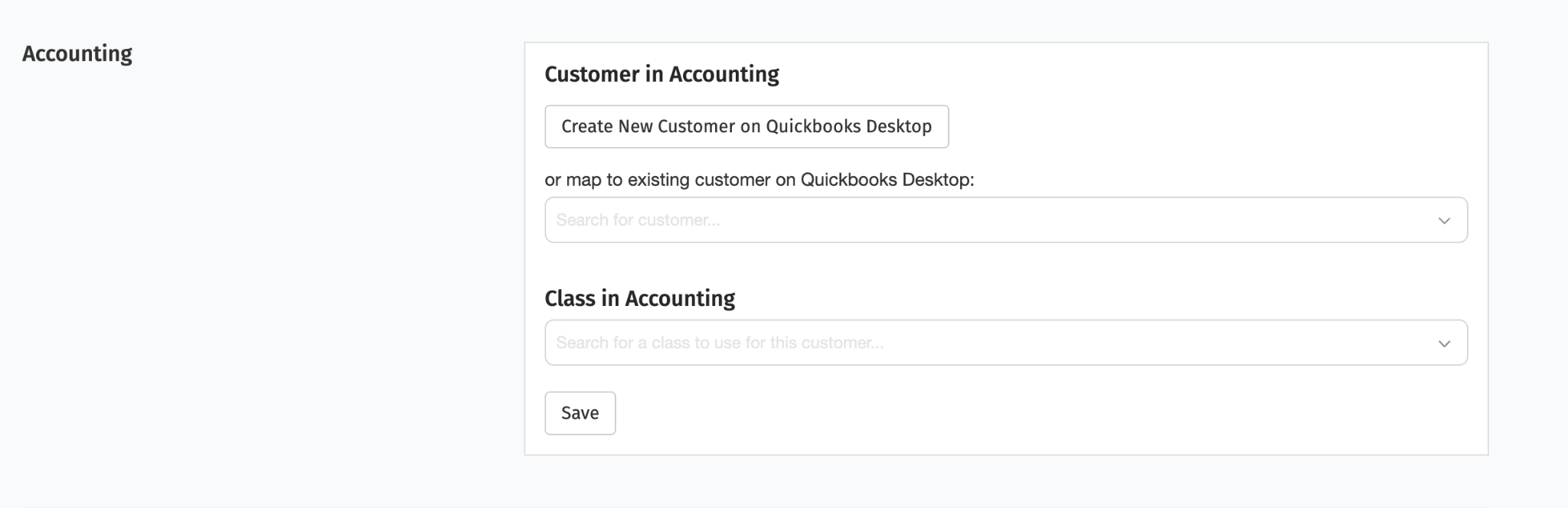
Map to an existing accounting customer
- Open the Search for customer... menu.
- Search by customer name and select the matching customer from the accounting platform.
- Select Save to store the mapping.
The menu searches the customer records currently available from the accounting connection.
Create a new accounting customer
- If the customer does not exist in the accounting platform, select the platform-specific create option, such as Create New Customer on QuickBooks Online.
- Select Save to finish the update.
RoasterTools creates a new customer record in the connected accounting platform.
Assign a customer class when available
Use Class in Accounting to assign a QuickBooks class to the customer. When set, invoices synced for that customer use the saved class for reporting.
Common uses include:
- Sales channels: Wholesale, Retail, or E-commerce;
- Customer types: Cafes, Grocery, Foodservice, or Office;
- Regions: East Coast, West Coast, or Local; and
- Sales representatives: Assigning revenue to team members.
For example, assigning a QuickBooks class named Wholesale - Cafes means invoices for that customer appear under that class in QuickBooks reports.
This setting is optional. Leave it blank if your workflow does not use classes. If the connection has a default class, RoasterTools uses that default when this customer-specific setting is blank. Select Save after changing the customer mapping or class.
Map the customer needed by one order
This path is useful when you are ready to sync invoices and find an order whose customer or items still need mappings.
- Open Orders.
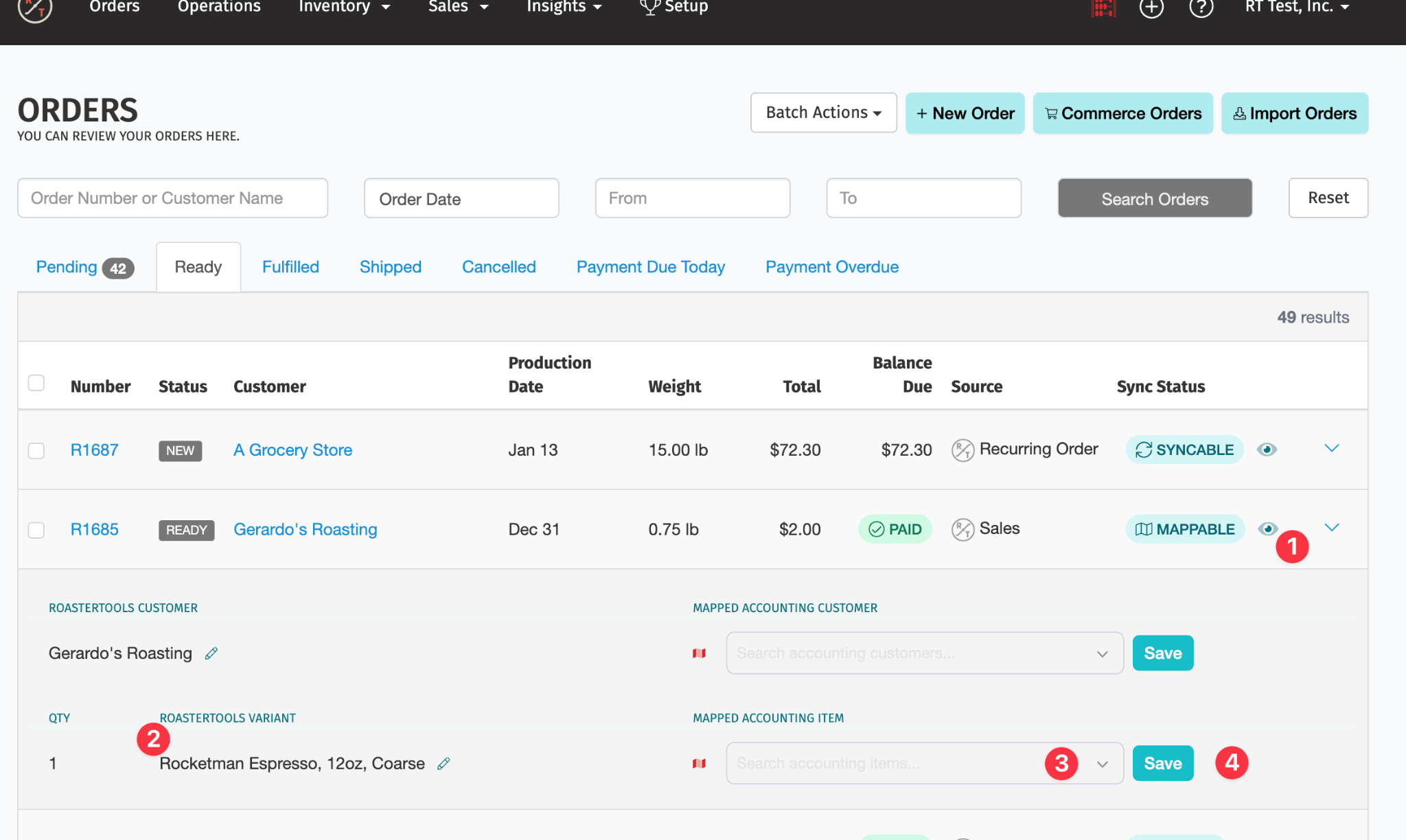
- Find an order with a MAPPABLE accounting status. This status means that its customer, product variants, or both still need mappings.
- Select the eye icon on the order row to open the mapping panel.
- Under ROASTERTOOLS CUSTOMER → MAPPED ACCOUNTING CUSTOMER, review the RoasterTools customer on the left.
- Use the menu on the right to search for and select the matching accounting customer.
- Select Save.
The same panel lists each order line under ROASTERTOOLS VARIANT → MAPPED ACCOUNTING ITEM. Each line shows its quantity and variant details so you can map the items needed by the order.
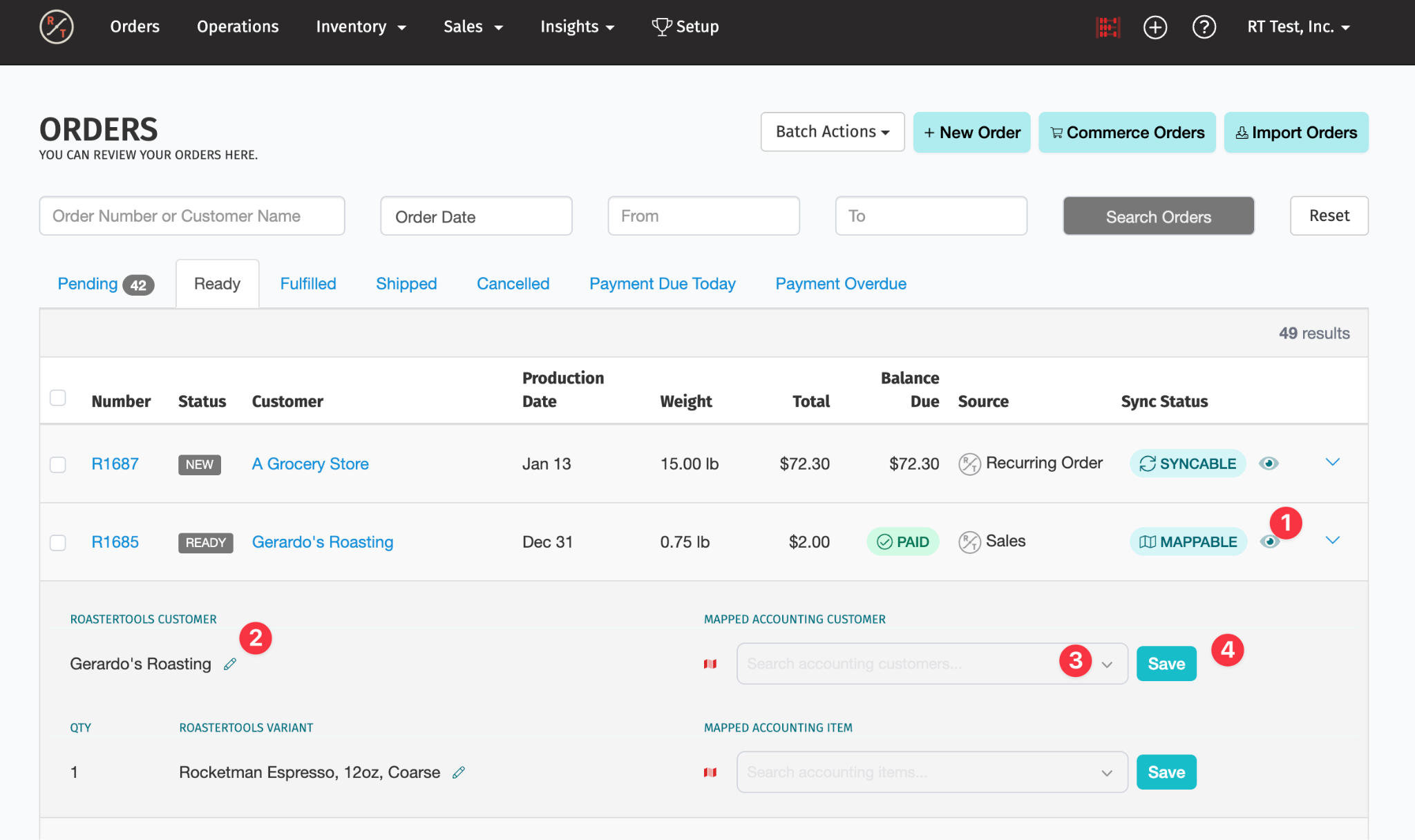
Mappings saved from the order panel apply to later orders for the same customer and product variants. When the order's customer and every product variant are mapped, its accounting status changes from MAPPABLE to SYNCABLE.
Consolidate customers from a direct commerce connection
This option requires an integration that imports orders directly from a commerce platform (direct commerce connection). It does not apply to orders imported through ShipStation.
Commerce orders create retail customers in RoasterTools by default. Many teams assign all of those retail orders to one accounting customer, such as Web Orders, instead of creating a separate accounting customer for each retail buyer.
- Open Integrations.
- Open the three-dot menu beside the direct commerce connection and select Edit.
- Open Preferences.
- Under Consolidate Retail Invoices in Accounting, search for and select the accounting customer that should receive the retail invoices.
- Select Update Retail Invoice Consolidation.
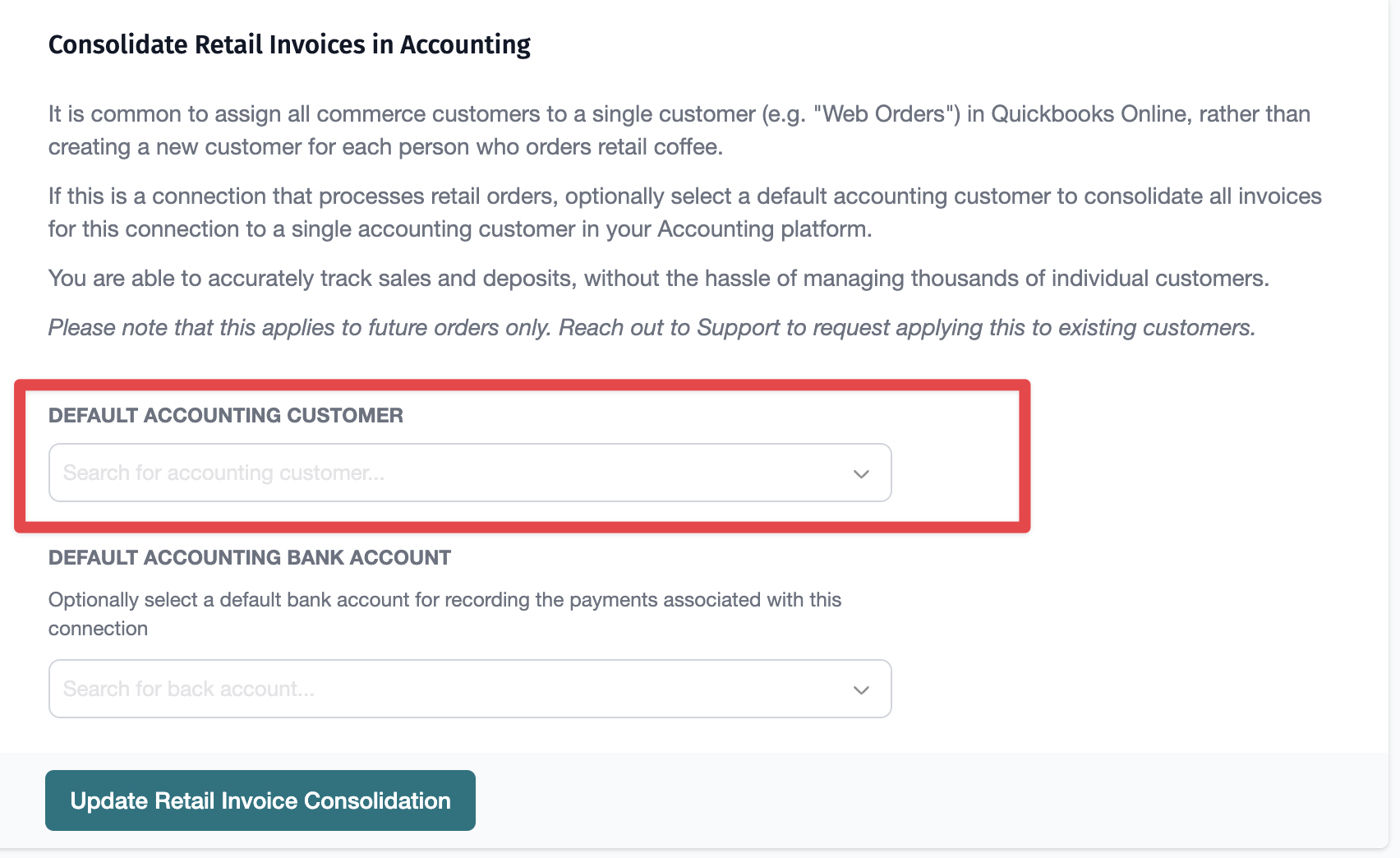
The consolidated mapping applies only to orders imported after you save the setting. Map an earlier order's customer individually from the customer edit page. A returning commerce customer whose earlier order was imported before the setting changed may also remain unmapped on a later import. This is especially common with subscription orders.
2. Map product variants
Each active RoasterTools product variant used on an invoice needs a matching item in the accounting platform. Each grind, size, or other option combination is a separate variant with its own mapping.
Product mappings are not available from the connection-level Mappings page. Use an order or the product page instead.
Map the product variants needed by one order
An order can have a MAPPABLE status because one or more product variants have not been linked to accounting items. Open the order mapping panel as described in Map the customer needed by one order. Then find the lower section labeled QTY | ROASTERTOOLS VARIANT → MAPPED ACCOUNTING ITEM.
Each order line shows:
- the quantity ordered;
- the RoasterTools variant, such as Rocketman Espresso, 12oz, Coarse; and
- a menu for selecting the matching item in the accounting platform.
- Open Search accounting items... beside a variant.
- Search for and select the matching accounting item.
- Select Save.
- Repeat for every product variant listed on the order.
A saved variant mapping applies to other orders that use the same variant. Once the customer and every product variant are mapped, the order changes from MAPPABLE to SYNCABLE.
Map variants from a product
Use the product page when setting up products for the first time or when you want to map all active variants without waiting for orders that use them.
- Open Inventory → Products.
- Select the product you want to map.
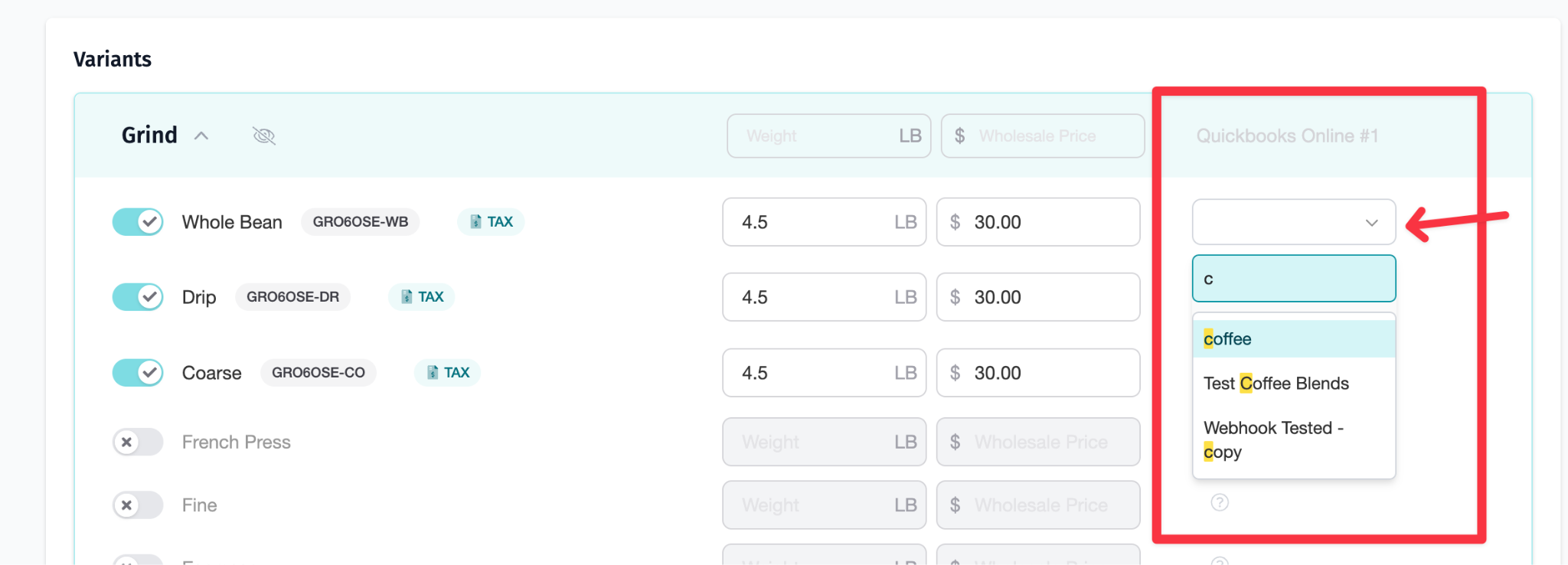
- Scroll to the Variants section.
- Find the column for your accounting connection, such as QuickBooks Online #1.
- For each active variant, such as Whole Bean, Drip, or Coarse, open the menu, search for the matching accounting item, and select it.
- At the bottom of the page, select Update Product.
The mappings are saved when you update the product.
Create an accounting item when no match exists
If the accounting platform does not already contain a suitable item, RoasterTools can create a non-inventory item and map it to the product variant.
- Open Inventory → Products and select the product.
- To create items for all active, unmapped variants, select Create Item on Accounting near the top of the product page. To create an item for one variant, open that variant's three-dot menu and select Create Item on Accounting.
- Review the confirmation, then select Create Item or Create Items.
RoasterTools creates the item or items in the background and maps each one to its product variant when it is ready. The confirmation also lets you enable email notifications for successful or failed item creation.
If Create Item on Accounting is unavailable because required accounts are missing, open the connection's Settings → Items page and complete the fields shown there. The action is also unavailable for a variant that is inactive or already mapped.
Product-mapping tips
- Map every active variant: Each grind, size, or option combination needs its own mapping.
- Search by name: Type in the search field to filter accounting items. For example, typing c can show items containing coffee.
- Skip inactive variants: Variants marked with an × are inactive and do not appear on orders. Map them if they become active again.
- Treat this as one-time setup: A variant remains mapped unless you change the mapping or create a new variant.
If you have many products, mapping from each product page is often faster than waiting for orders and mapping variants one at a time.
Credit items (beta): if you use Credit Memos, map your credit items too, like Credit - Shipping, or memos that use them won't sync. See Credit Memos: How to Set Up Accounting for Credit Memos.
3. Map payment methods when available
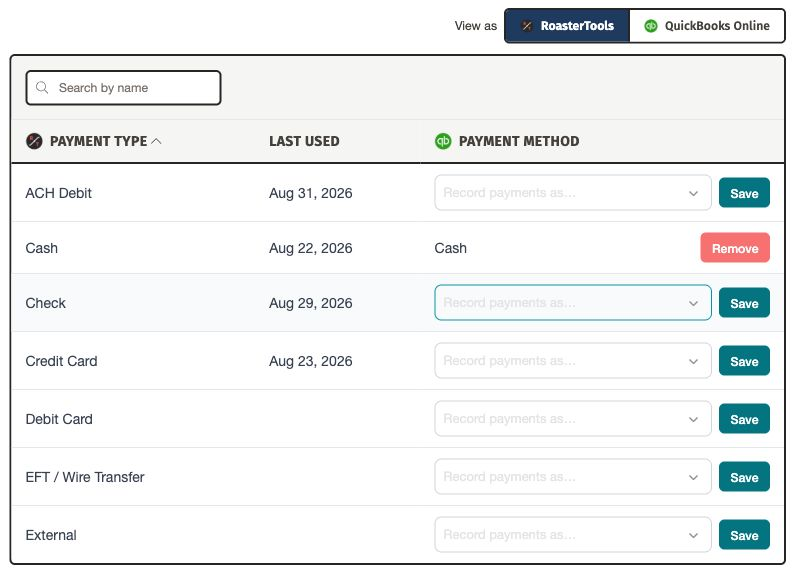
If your accounting platform supports payment-method mappings, the connection shows Mappings → Payment methods.
- Open Integrations and select your accounting connection.
- Open Mappings → Payment methods.
- Under View as, choose RoasterTools. This is where you create or change payment-method mappings.
- Find a payment type your team uses, such as card, check, cash, or bank transfer.
- Under Record payments as…, select the corresponding payment method from your accounting platform.
- Select Save.
- Repeat for the other payment types your team uses.
Payment-method mappings are optional. They describe the method attached to a synced payment. They do not turn payment syncing on or choose the account where a payment is recorded.
To change whether payments sync or where they are recorded, use Settings → Payments. See Decide how payments sync in Set up accounting sync.
4. Review mapping questions
Can I change a customer mapping later?
Yes. Open the customer's Accounting section, select a different accounting customer, and save. Future invoices use the new mapping. An invoice that already synced is not rewritten.
Can I change a product variant mapping later?
Yes. Return to the product's Variants section, select a different accounting item, and then select Update Product. Later invoices use the updated mapping.
What happens if I do not map a customer or product variant?
RoasterTools cannot sync an invoice until its customer and every product variant on the order are mapped. The order remains MAPPABLE.
Do I need to map every customer?
No. Map only the customers whose invoices you plan to sync to accounting. You can leave other customers unmapped.
Why is a commerce customer's order still MAPPABLE?
See Consolidate customers from a direct commerce connection. The setting applies only to orders imported after it is saved. Earlier orders, including some returning or subscription orders, may still need an individual mapping.
Next: sync and verify invoices and payments
When an order's customer and every product variant are mapped, its accounting status is SYNCABLE. Continue to Sync and verify invoices and payments to sync an invoice and confirm the result.