
Accounting: How to Connect to QuickBooks Online or Xero
Connecting your accounting account is the first step toward reducing duplicate data entry and syncing RoasterTools orders to your accounting platform.
Using QuickBooks Desktop? Follow Connect QuickBooks Desktop with Web Connector.
Before you begin
Pricing: A Xero connection is $29 per month. A QuickBooks Online connection is included with your RoasterTools subscription.
You will need:
- admin access, or permission to authorize applications, for the QuickBooks Online company or Xero organization you want to connect;
- the name of the company or organization you intend to connect; and
- a few minutes to complete the connection.
What to expect
- Connection: Signing in and authorizing access typically takes only a few minutes.
- Initial import: Imported accounting records may begin appearing within a few minutes. A complete import usually takes an hour or so, but all customers and items can take up to a few hours to appear for larger accounting files.
- Ongoing updates: Data updates automatically in the background throughout the day.
Connect QuickBooks Online or Xero
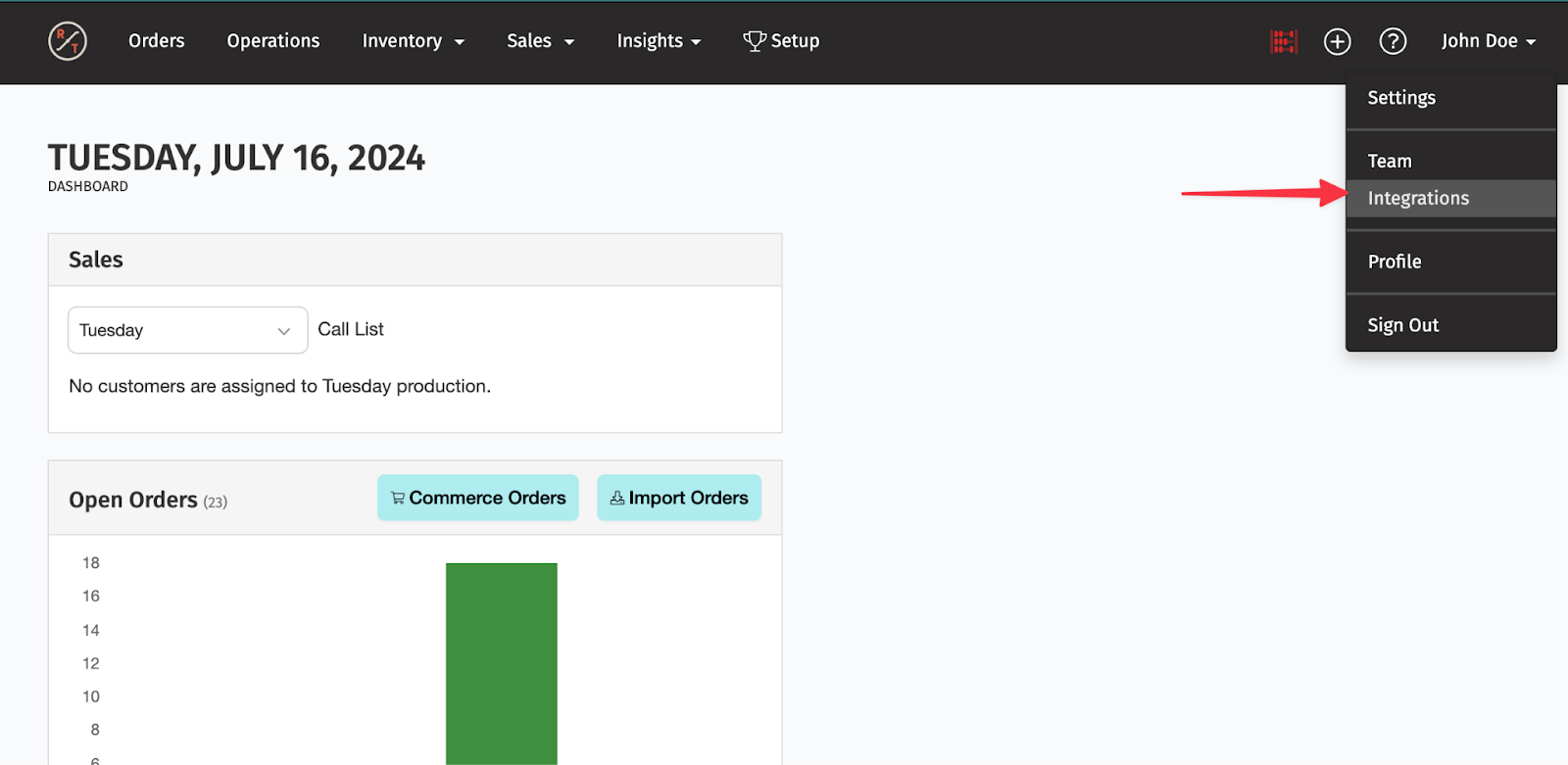
- In RoasterTools, select your name in the upper right.
- Select Integrations.
- Select Add an Integration, then Accounting.
- Next to QuickBooks Online or Xero, select Create a Connection.
- Sign in with an accounting-platform administrator account.
- If your login can access more than one company or organization, select the one you want to connect.
- Select Allow Access to authorize RoasterTools.
You will return to RoasterTools, and the initial import will begin. Leave the connection in place while RoasterTools imports the customers, items, accounts, and other records it needs.
Verify the connection
- Open Integrations and find the new accounting connection.
- Confirm that the connection is active and its health does not show RECONNECT.
- Open the connection.
- Open Mappings, then Customers, and confirm that imported accounting customers are appearing.
If the connection is healthy but customers are still loading, return later and check again. A full initial import can take up to a few hours.
This step is complete when the intended accounting company is connected and its imported customers are available.
Connection status
The Integrations page shows the status and health of each accounting connection. Open the three-dot menu for connection actions. Choose Reconnect when the connection needs authorization again, or Deactivate when you want to stop using it.
For details about connection health and reauthorization, see Reconnect an accounting or commerce integration.

Next step: set up accounting sync
Continue with Set up accounting sync. From there, the accounting guides walk you through the applicable settings, optional customer import, the mappings needed for one order, and a representative invoice before a larger sync.
Frequently asked questions
Connection and setup
Do I need to install anything?
No. Sign in to QuickBooks Online or Xero and authorize access. There is no software to install.
How long does the initial import take?
The connection itself usually takes a few minutes. The first accounting records may appear within a few minutes, but a complete import commonly takes an hour or more and can take up to a few hours for larger accounting files.
Ongoing use
Do I need to refresh imported accounting records manually?
No. RoasterTools checks for changes to imported accounting records automatically in the background.
How often do imported accounting records update?
RoasterTools checks for updates throughout the day. You do not need to manage the schedule.
What data syncs between RoasterTools and Xero?
RoasterTools imports the accounting records needed for setup, including customers and items. After setup, RoasterTools can sync invoices and payments to Xero.
Do inventory quantities sync to my accounting platform?
No. RoasterTools does not sync inventory quantities to the accounting platform.