
Customers: How to Filter Your Customer List by Payment Information
The filter on your Customers page lets you view customers by the various settings or attributes including payment information. Use the Payment filters to see what payment types are enabled, payment methods on file, required payment settings and more.
Overview:
Getting started
- Go to Sales > Customers.
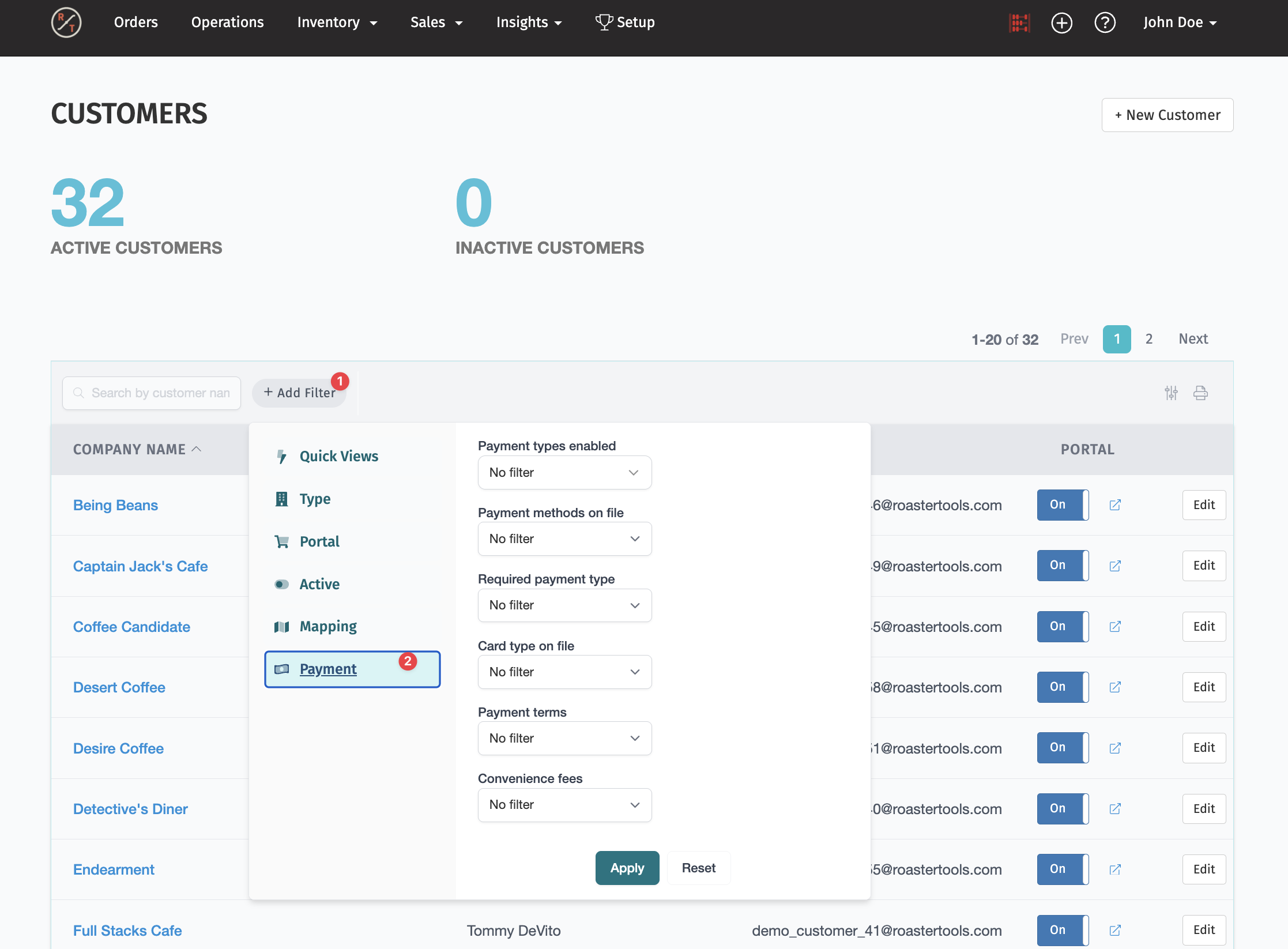
- Click + Add Filter, next to the customer search bar.
- Choose a tab, like Payment, and pick your filter criteria.
- Apply the filter to update your list.
The page shows active customers by default. To see inactive customers, use the filter and choose Inactive customers.
Payment filters
Click + Add Filter and select the Payment tab. You can filter customers by:
- Payment types enabled: what the customer is allowed to pay with. You can pick more than one.
- Payment method on file: whether the customer has a card or bank account saved that can actually be charged.
- Payment Terms: what payment terms are assigned to a customer.
- Card type on file: credit or debit.
- Required payment type: customers who are required to keep a specific payment type on file.
- Convenience fees: on or off for that customer.
Common workflows
Find customers who need to update a required payment method
- Click + Add Filter > Payment and filter by Required payment type.
- Look for customers whose required type is shown in amber. They don't have a usable method on file.
- Open each customer and request a new card or bank account. See Payments: How to Set Up Customer Payment Terms and Methods.
Review who's paying convenience fees
- Click + Add Filter > Payment and filter Convenience fees to on.
- Check the Payment methods column to make sure each customer has a usable credit card, and ideally ACH Debit as a no-fee option.
Find customers with no way to pay online
- Click + Add Filter > Payment and filter Payment method on file to customers without one.
- Send each a request to add a card or bank account.
Stop requiring a payment type for a group of customers
- Click + Add Filter > Payment and filter Required payment type to the type you want to stop requiring, like Credit Card.
- Select all, then choose Actions > Remove required payment type.
Batch actions
Need to make the same change for a bunch of customers? Select them in your list and use Actions to update them all at once. This works best with filters: narrow your list down first, then update everyone in one step.
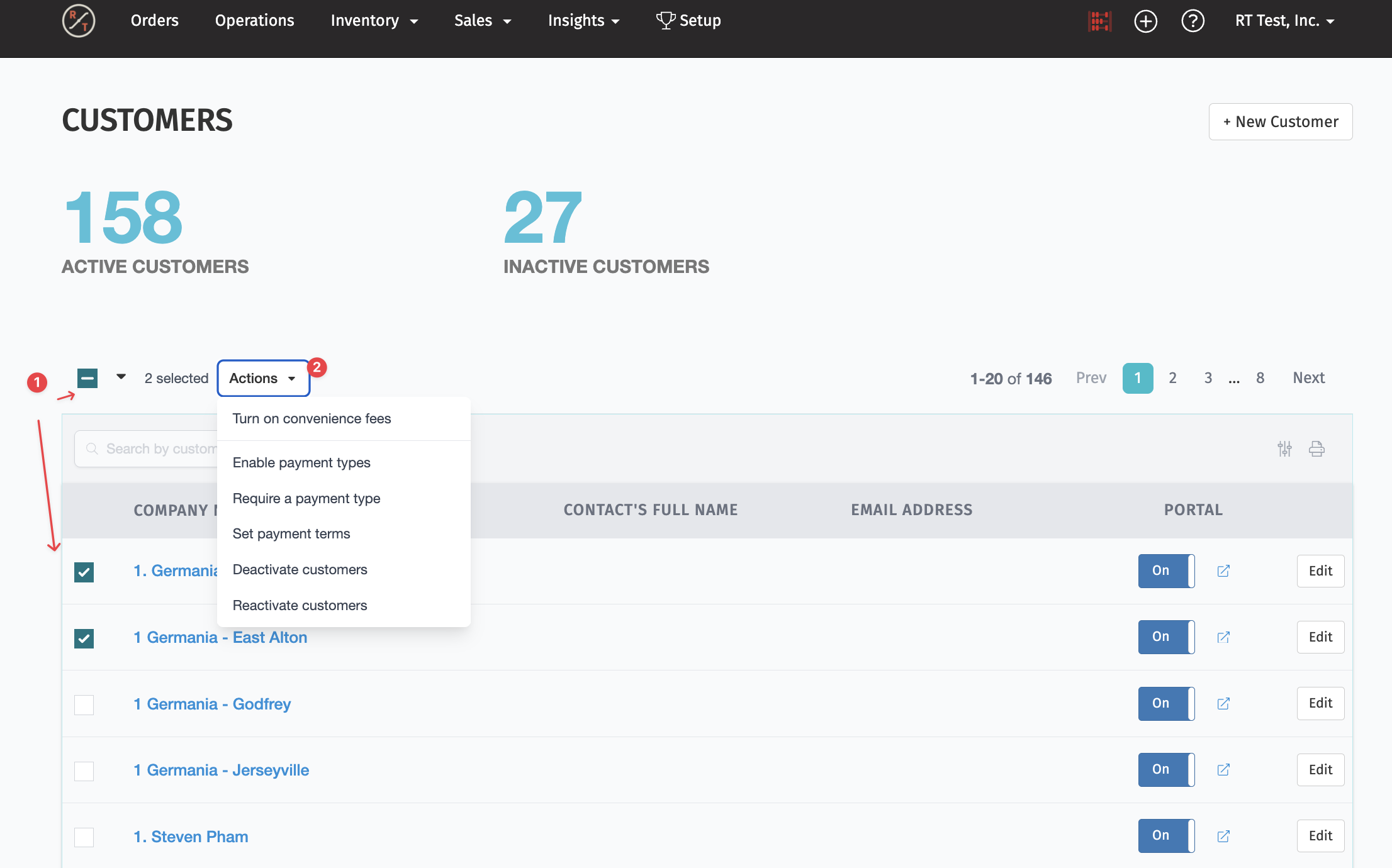
- Check the box next to each customer you want to update. To select every customer on the page, check the box at the top of the list.
- Click Actions, next to the selected count.
- Choose an action and follow the prompts to apply it.
You can use batch actions to:
- Turn on convenience fees: start adding convenience fees to card payments for the selected customers.
- Enable payment types: choose which payment types the selected customers can pay with.
- Require a payment type: require the selected customers to keep a specific payment type on file.
- Remove required payment type: clear the required payment type for the selected customers. Their payment types stay turned on, and customers with nothing required stay as they are.
- Set payment terms: assign the same payment terms to every selected customer.
- Deactivate customers: move customers you no longer sell to off your active list.
- Reactivate customers: bring inactive customers back. Filter to Inactive customers first so they show up in your list.
Example: To turn on convenience fees for everyone who pays by card, click + Add Filter > Payment, filter Payment types enabled to Credit Card, select all, then choose Actions > Turn on convenience fees.
Heads up: Batch actions apply to every customer you've selected. Check the selected count before you apply a change.
FAQs
Q: A customer has a card saved but isn't showing up as having a method on file. Why?
A: The card is likely expired, or it was saved under a previous payment processor. Only methods that can be charged today count. Request a new card from the customer's record.
Q: Why did the Contact column disappear?
A: When a Payment filter is on, the Contact column is replaced by the Payment types and Payment methods columns. Remove the Payment filter to bring it back.
Q: Can I combine filters?
A: Yes. Customers need to match every filter you apply to show up in the list.
Q: Can I update a setting for lots of customers at once?
A: Yes. Select them in the list and use Actions. See Batch actions. For settings not in the Actions menu, like delivery methods or production days, use the Customer CSV.
Learn More:
Setting payment terms or requiring a method on file? See Payments: How to Set Up Customer Payment Terms and Methods.
Turning on convenience fees for a customer? See Payments: Convenience Fees.
Adding or deactivating customers? See Customers: Adding, Managing and Deactivating.
Updating settings for lots of customers at once? See Customers: Bulk Update Customer Settings with the Customer CSV.
Filtering orders instead? See Order Page: Sort Orders Using Filters.