
Credit Memos: How to Create a Credit Memo
Create a Credit Memo from a specific order, or from scratch for any customer. The credit becomes its own record your customer can use on a future order or invoice. Creating a memo doesn't apply the credit anywhere yet.
Watch: Creating a Credit Memo (4.5 min)
Overview:
Before you start: Sales tax and convenience fees don't copy over from an order. A "Not included from Order #…" box at the top of the form shows what was left out and the amount.
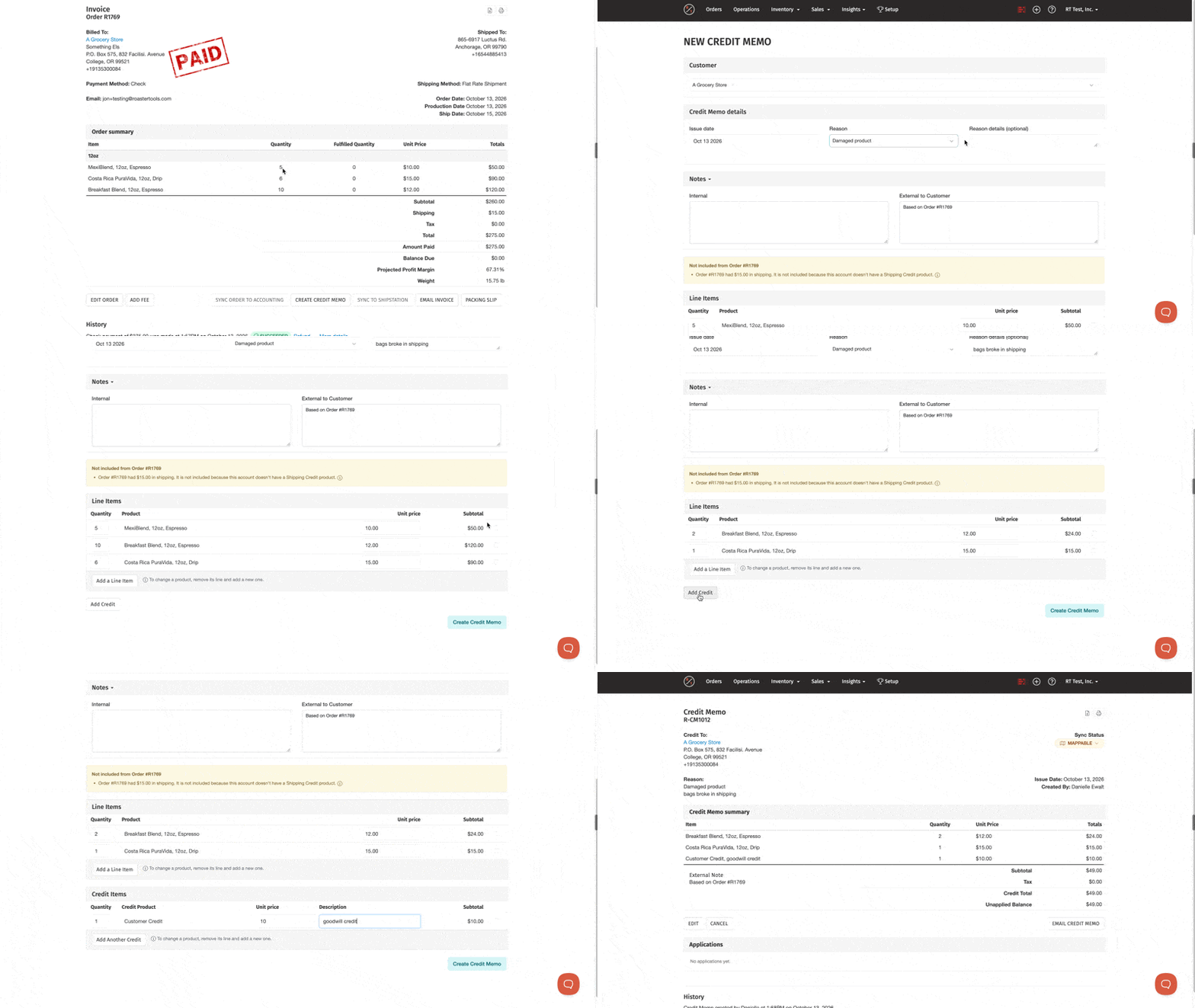
Create a credit from an order
- Open the order.
- Click Create Credit Memo (at the bottom of the order, after Sync Order to Accounting).
- Review what copied over: your customer, each product line at the price you charged after discounts, shipping as a credit line, and any manual fees.
- Remove lines, change quantities or edit prices so the memo covers only what you're crediting. To change a product, remove its line and add a new one.
- Choose a Reason, and add Reason details if they help.
- Set the Issue date if it should be something other than today.
- Click Create Credit Memo.
Create a credit from scratch
- Open the customer's page and click Create Credit Memo (next to Edit). You can also go to Sales > Credit Memos and click + New Credit Memo.
- Under Line Items, add any of your products with Add a Line Item. The price fills in from the customer's current pricing, and you can change it.
- To credit an amount instead of a product, click Add Credit, choose a credit item (like your shipping credit) and type the amount. Add a description if it helps.
- Choose a Reason, set the Issue date, and click Create Credit Memo.
Edit a Credit Memo
You can edit a credit memo but only before it has been applied to an invoice. After, you can no longer edit it.
- Open the memo and click [Edit].
- Change lines, prices, the reason, notes or the issue date, then click Update Credit Memo.
Heads up: Once a memo has synced, edits in RoasterTools aren't sent to accounting. Make the same change there. Canceled memos can't be edited.
Find a customer's credits
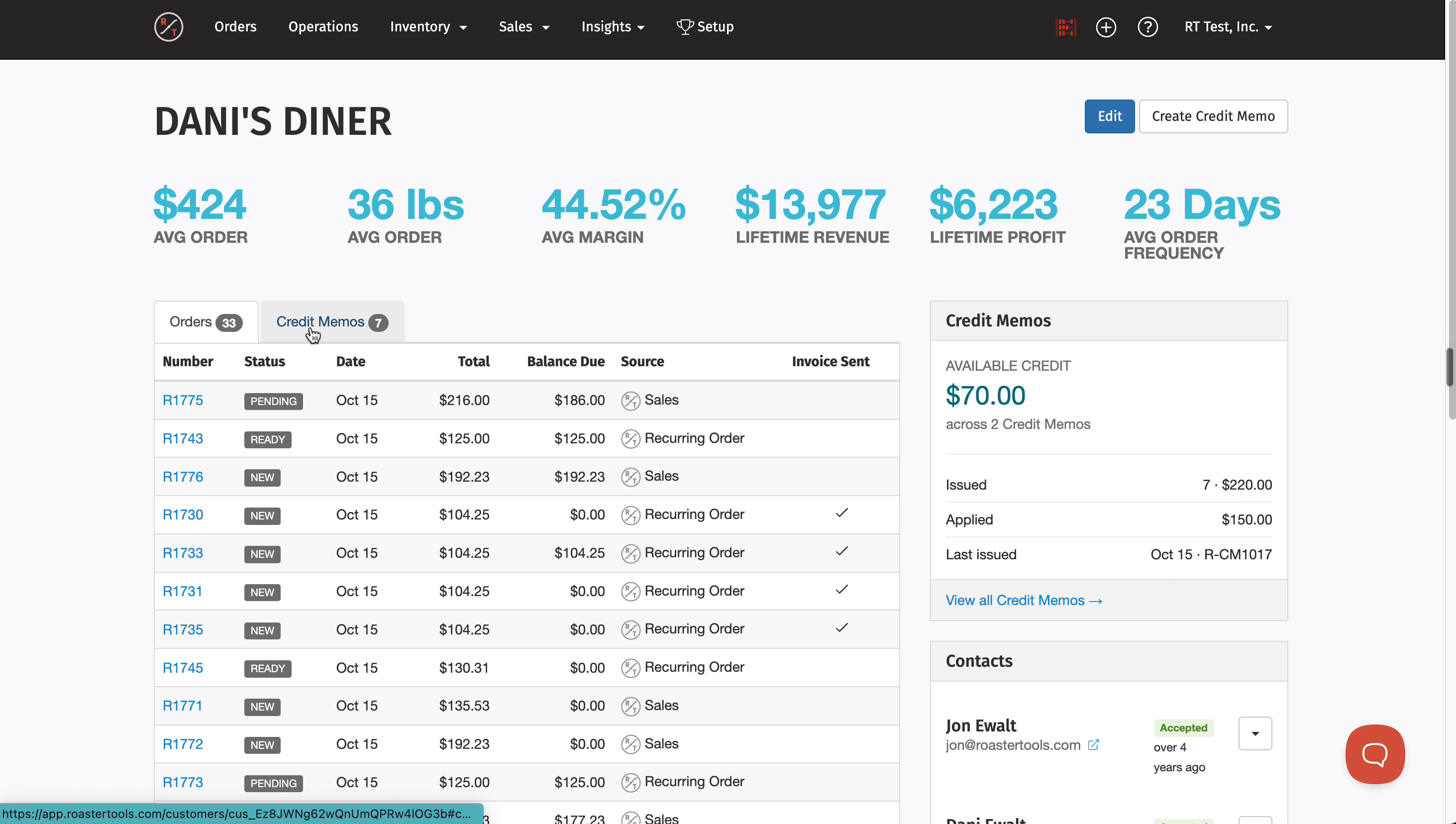
Each customer's page has a Credit Memos tab next to Orders, and a Credit Memos panel showing available credit. For all memos, go to Sales > Credit Memos. You can filter by who created the memo, and canceled memos have their own tab.
Customer page with Credit Memos tab and panel:
Learn More: Ready to use the credit?
See Credit Memos: How to Apply Credit to an Order.
Reasons, what copies from an order, and which orders can't be used are in Credit Memos: Reasons, Rules and Sync Reference.
Need a shipping or customer credit? See Credit Memos: How to Create a Credit Item.