
RoasterPay: How to Record Offline Payments
When a customer pays you outside of RoasterTools — with cash, a check, a wire, or any other method you handle on your own — you can record that payment against the order so the invoice shows as paid. Nothing is charged in RoasterTools: you're simply telling RoasterTools the money already arrived for an order.
What is an offline payment?
An offline payment is any payment you collect outside of RoasterTools' card and ACH processing. RoasterTools doesn't move the money — you record it so the order and invoice stay accurate.
Offline payment types include:
- Cash — paid in person or on delivery.
- Check — mailed or handed to you. Use the payment reference field for the check number.
- EFT/ Wire Transfer — sent directly to your bank.
- External — a catch-all for anything collected another way.
- Use External when a customer has already paid you through a channel RoasterTools doesn't handle and you just need the invoice to reflect it. Common examples:
- A card run through a separate point-of-sale terminal.
- A payment app like Venmo, PayPal, or Zelle.
- A payment collected on another platform or marketplace.
- Any other arrangement where the money reached you outside RoasterTools.
- Use External when a customer has already paid you through a channel RoasterTools doesn't handle and you just need the invoice to reflect it. Common examples:
For collectable payments that RoasterTools does process - credit card and ACH - see the Learn More links at the bottom of this article.
How to record an offline payment
The steps are the same whether you're recording cash, a check, a wire, or an external payment.
- Open an order and click Pay… to open the payment drawer.
-
Select the Payment Method you're recording (Cash, Check, Wire, or External).
NOTE: If you don't see the method you'd like to use, it means you need ot enable that payment type for the customer on the customer edit page.
- Optional: add a note or check number in the Payment reference field. Your customer can see this.
- Leave the amount as the full balance, or enter a smaller amount to record a partial payment.
- Click Record.
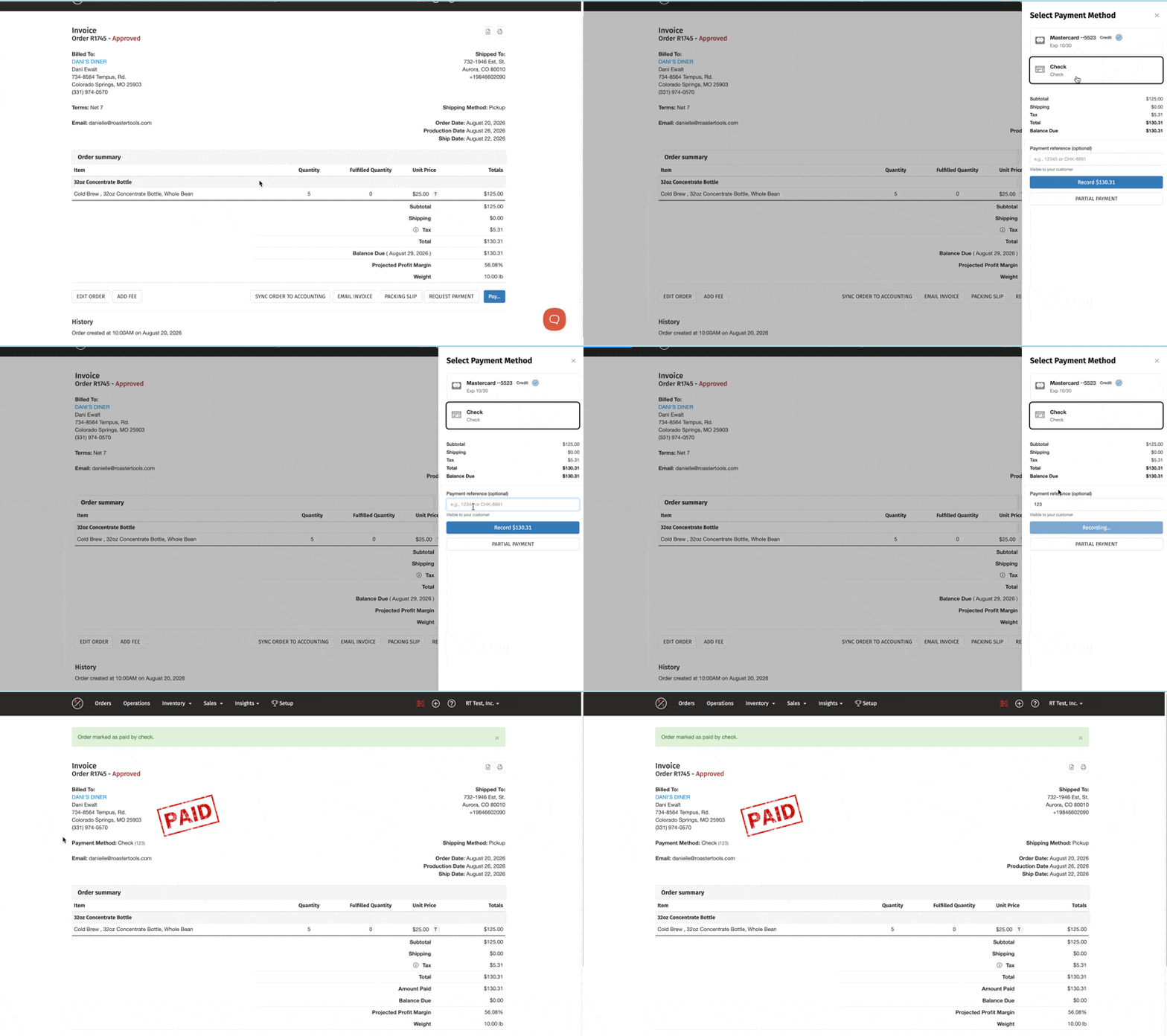
The invoice updates to Paid right away, and the payment appears in the payments list on the order as well as under Sales > Payments.
What happens after you record a payment
- The invoice shows Paid immediately
- The payment is listed on the order with its amount, date, method, and any reference note.
- It also appears under Sales > Payments, where you can track and sync it to your accounting platform.
- Offline payments can be synced to your accounting platform like any other payment. See the Learn More links below.
Reverting an offline payment
Recorded a payment by mistake — a check that bounced, or the wrong method? You can revert it and reopen the balance.
- Open the invoice.
- Click Refund under the order history.
- Click Update Order.
- Select a new payment method, or leave the order as unpaid.
For the full walkthrough, see Reverting a Cash or Check Payment.
FAQs
Q: I don't see Cash, Check, or External as an option in the Pay… drawer. Where are they?
A: Those types have to be enabled for the customer. If one is missing, go to the customer edit page and enable the desired payment method
Q: Does recording an external payment charge the customer?
A: No. External — like every offline type — only records money you've already collected. Nothing is charged and no ACH is started; RoasterTools just marks the invoice as paid.
Q: Can I record only part of the balance offline?
A: Yes. Enter a smaller amount in the drawer to record a partial payment, and the order stays open for the remainder. See Partial Payments for details.
Q: Will an offline payment sync to my accounting platform?
A: Yes. Checks, cash, wires, and external payments all show under Sales > Payments and can be synced like any other payment.
Q: Am I charged a fee for recording offline payments?
A: No
Learn More:
Collecting a card or ACH payment instead? See RoasterPay: How to Process Credit Card and ACH Payments.
Recording only part of a balance? See Partial Payments: Collecting a Portion of an Order Balance.
Made a mistake? See Reverting a Cash or Check Payment.
Syncing to accounting? See Accounting: How to Sync and Verify Invoices and Payments.