
Credit Memos: How to Remove Applied Credit
Use this when credit went on the wrong order, or you want to change how much was applied.
Overview:
Before you start:
- Unapplying doesn't refund a payment. It only puts the credit back on the memo.
- If the credit already synced to accounting, you'll need to update accounting too. The steps depend on your accounting software.
Unapply credit in RoasterTools
- Open the Credit Memo.
- In the Applications section, find the order and click Unapply.
- Review the message and confirm. The credit goes back on the memo, and the order's balance due goes back up.
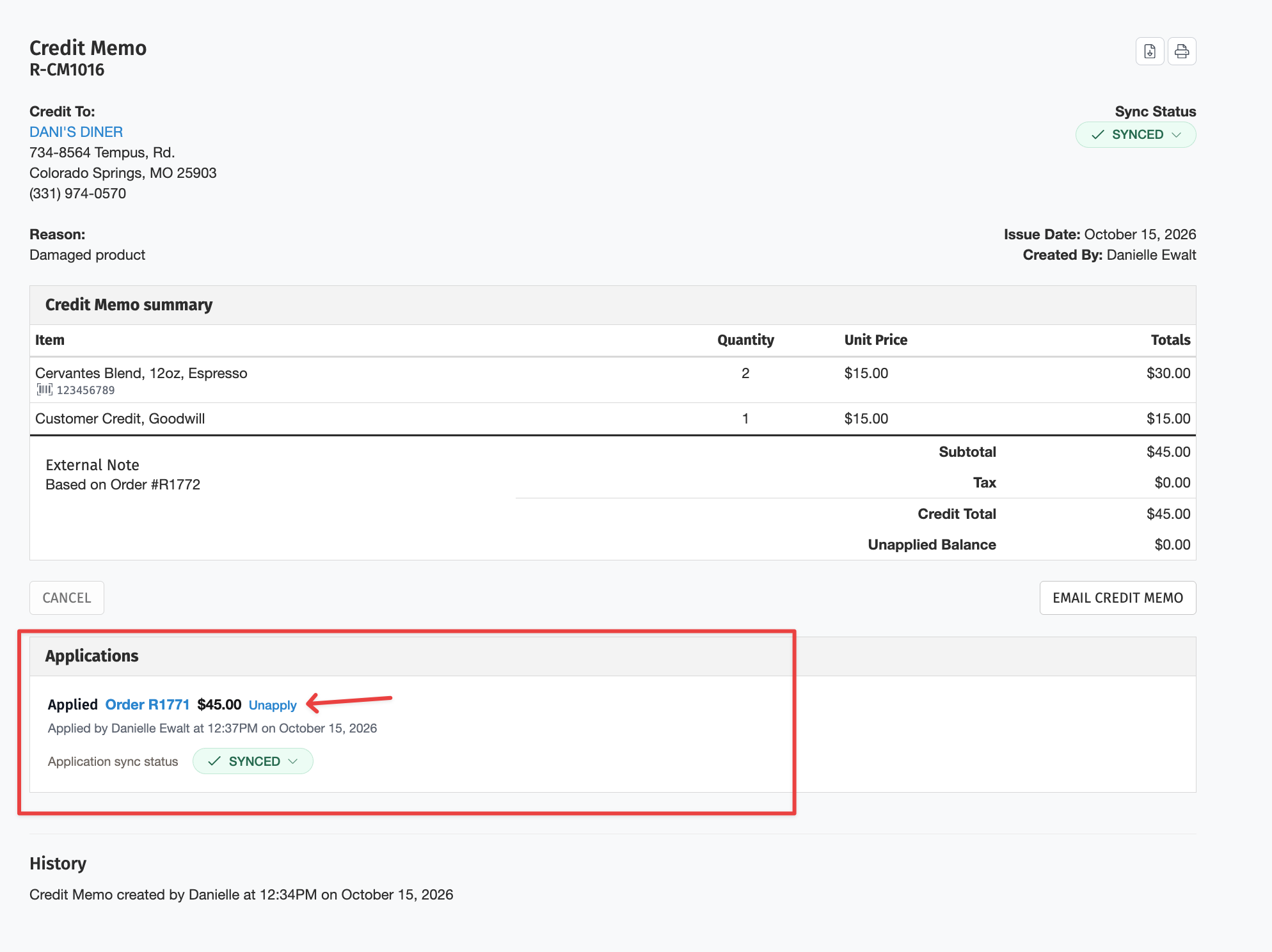
The original application and its removal both stay in the memo's history. If the credit was never synced, the Unapply sync status shows Not needed and you're done.
QuickBooks Online
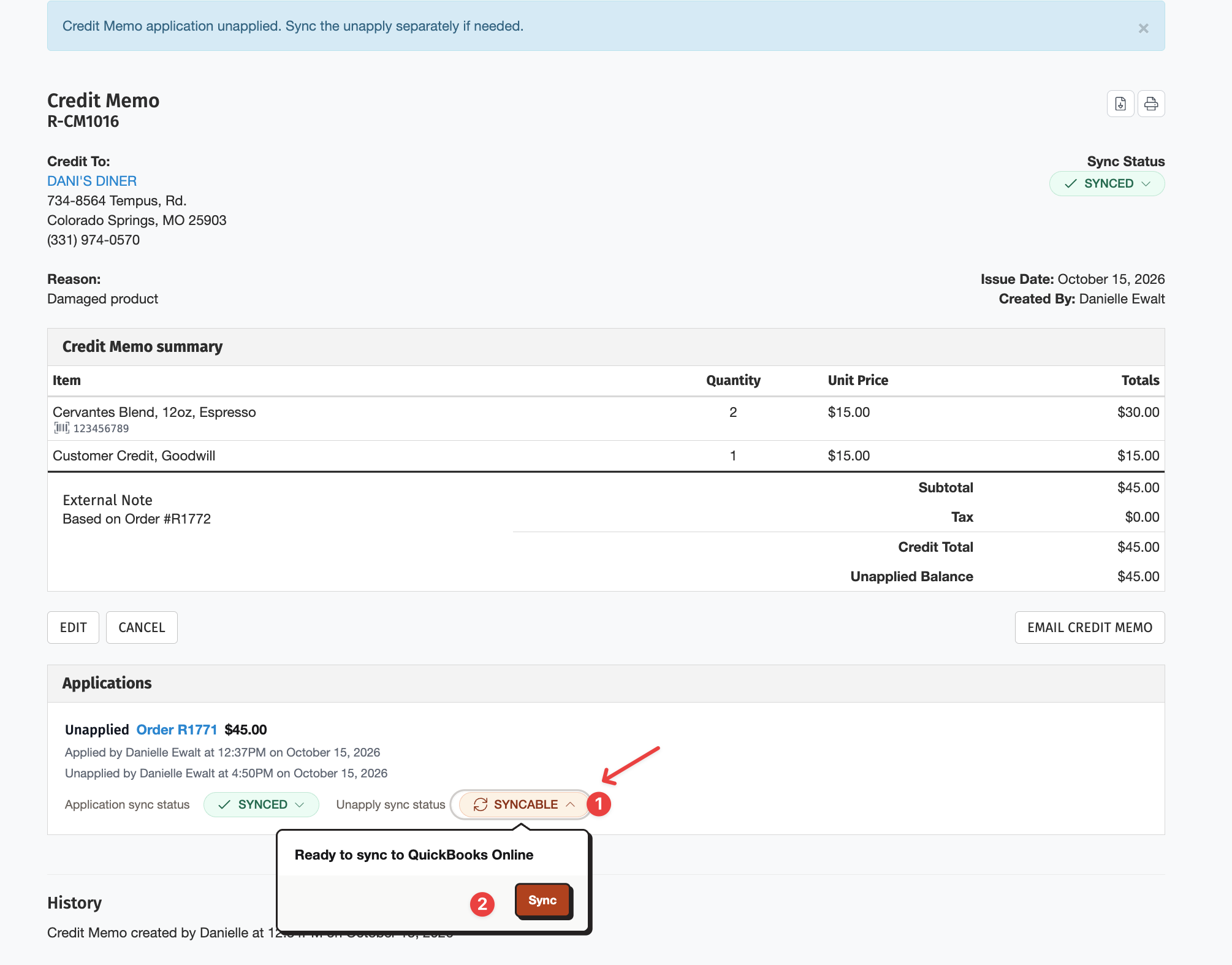
If you've already synced the application of the credit to QuickBooks Online, you'll need to unapply that sync so that your accounting and RoasterTools are in sync.
At the bottom of the page, in the applications box, the original application sync status and then the unapply sync status are displayed. You'll need to sync the reversion of this application to keep both systems with the same data.
- On the application's Unapply sync status, select Synable
- click Sync.
RoasterTools removes the credit in QuickBooks Online for you.
QuickBooks Desktop
RoasterTools doesn't remove the credit in QuickBooks Desktop. The Unapply sync status shows Manual. Click it to see these steps.
- In QuickBooks Desktop, open the invoice the credit was applied to.
- Click Apply Credits.
- Under Previously Applied Credits, untick the Credit Memo.
- Click Done, then Save & Close.
QuickBooks Desktop picks up the change on the next Web Connector run. The status stays Manual because RoasterTools can't see changes made in QuickBooks Desktop. That's expected.
Xero
RoasterTools doesn't remove the credit in Xero. The Unapply sync status shows Manual. Click it to see these steps.
- In Xero, go to Sales > Invoices and open the Credit Memo. Xero calls it a credit note.
- Under Total credit, find the line Less: Credit to [invoice number] ([date]) for the invoice the credit was applied to.
- Click ✕ on that line.
- In the Delete credit allocation box, click Delete.
The invoice in Xero shows the amount due again. The status stays Manual because RoasterTools can't see changes made in Xero. That's expected.
Applying the same credit again
QuickBooks Desktop and Xero: Remove the earlier credit in your accounting software first, or it's applied twice.
When you click Sync or Retry Sync on the new application, RoasterTools reminds you:
This credit was unapplied in RoasterTools. Remove it in [Xero / QuickBooks Desktop] first, or it will be applied twice. After you remove it, this sync may not go through right away. If it fails, use Retry Sync later.
Click Continue to sync, or Cancel if you haven't removed it yet.
The sync may not go through right away. The change can take a while to reach RoasterTools, and until then the sync can fail with a message like "Invoice payment amount … is larger than the amount due 0 of the linked invoice." That doesn't mean you did anything wrong. Use Retry Sync later.
Q: I synced the new application before removing the earlier credit. What now?
A: Check the invoice in your accounting software. If it shows both credits, remove the earlier one using the steps above. Not sure which? Contact support@roastertools.com with the Credit Memo number, order number and the exact error message.
Learn More:
Rules for reapplying credit are in Credit Memos: Reasons, Rules and Sync Reference.
Want to cancel the memo instead? See Credit Memos: How to Cancel a Credit Memo.