
Bulk Production Process: Cold Brew
This article walks through the bulk cold brew workflow — where you produce cold brew in batches larger than any single customer order, hold it as inventory, and fulfill wholesale orders from that stock.
Overview:
Which workflow fits how you produce cold brew?
What bulk production looks like in RoasterTools
Which workflow fits how you produce cold brew?
There are a few different ways to produce cold brew in RoasterTools. Use the table below to figure out which one fits how you produce.
| If you... | Use this workflow |
|---|---|
| Always make cold brew ahead of orders (scheduled or whenever) | Bulk Cold Brew Production (this article) |
| Produce cold brew when you receive an order, but the quantity produced is based on the batch size you like to brew — not what's on the order | Bulk Cold Brew Production (this article) |
| Wait for an order, then brew exactly the order amount | Cold Brew On-Demand → |
| Send roasted beans to a co-packer for packaged cold brew (e.g., cans) | Co-Packed Products → |
What bulk production looks like in RoasterTools
In the bulk production workflow, the amount of cold brew you produce is independent of any single customer order. Production can be triggered by a set schedule, a low inventory threshold, or an incoming order — but the batch size is set by your brewing process, not by what's being ordered. Anything you don't immediately ship is held as inventory and fulfilled on future orders.
Bulk production uses a manual order for an internal customer account to trigger roasting and production of cold brew liquid.
Creating the cold brew
- Your team places a manual order to roast the beans for a cold brew batch (using the internal customer).
- The order runs through RoasterTools' normal coffee production flow — beans are roasted and the order is fulfilled to the internal customer.
- Your team brews the liquid cold brew and packages it into its final form (kegs, cans, bottles, growlers). This step happens outside RoasterTools.
- Once packaged, you manually update inventory on your cold brew variants. (Note: these are set up as non-coffee products.)
Fulfilling cold brew orders
- Wholesale customers place orders for cold brew variants. Note: cold brew non-coffee products don't trigger any roasting or brewing on their own.
- Orders are fulfilled from the inventory you created in the previous steps.
- When inventory runs low, your team places another internal production order and repeats the process.
The off-system step matters: RoasterTools doesn't know your cold brew has been brewed and packaged until you tell it. If you skip the inventory update in Step 4, wholesale orders won't have stock to draw from — even though the product is sitting in your cooler.
Why finished cold brew is set up as a non-coffee product
In bulk production, your batch size is independent of any single order — you might brew 5 gallons because that's your batch size, even if there's only an order for 1 gallon. To keep a single cold brew order from locking in the amount of beans roasted and cold brew produced, we break that connection by setting up the customer-facing cold brew products as non-coffee products.
How it works in bulk:
- The internal production order for beans to produce cold brew (using a coffee product) triggers the roast and the batch to brew.
- Finished cold brew goes into a separate non-coffee product inventory after it's brewed and packaged.
- Wholesale orders deduct from that inventory as they're fulfilled.
Compared to on-demand: in on-demand, one gallon ordered = one gallon brewed. That tight coupling only works as a coffee product. Bulk still uses a coffee product internally for the production batch, but the customer-facing product is always non-coffee.
One-time setup
Before you begin, gather:
- Your standard batch size for cold brew — how much roasted coffee you use per cold brew batch (5 lbs is fine if you don't have a fixed number).
- The cold brew products you sell and their sizes (keg, growler, 12oz cans, etc.).
Step 1 — Create an internal customer
A dedicated customer your team uses to place production orders.
- Go to Sales > Customers and click Add Customer.
- Name it descriptively — for example, Internal Cold Brew Production.
- Complete any required fields and save.
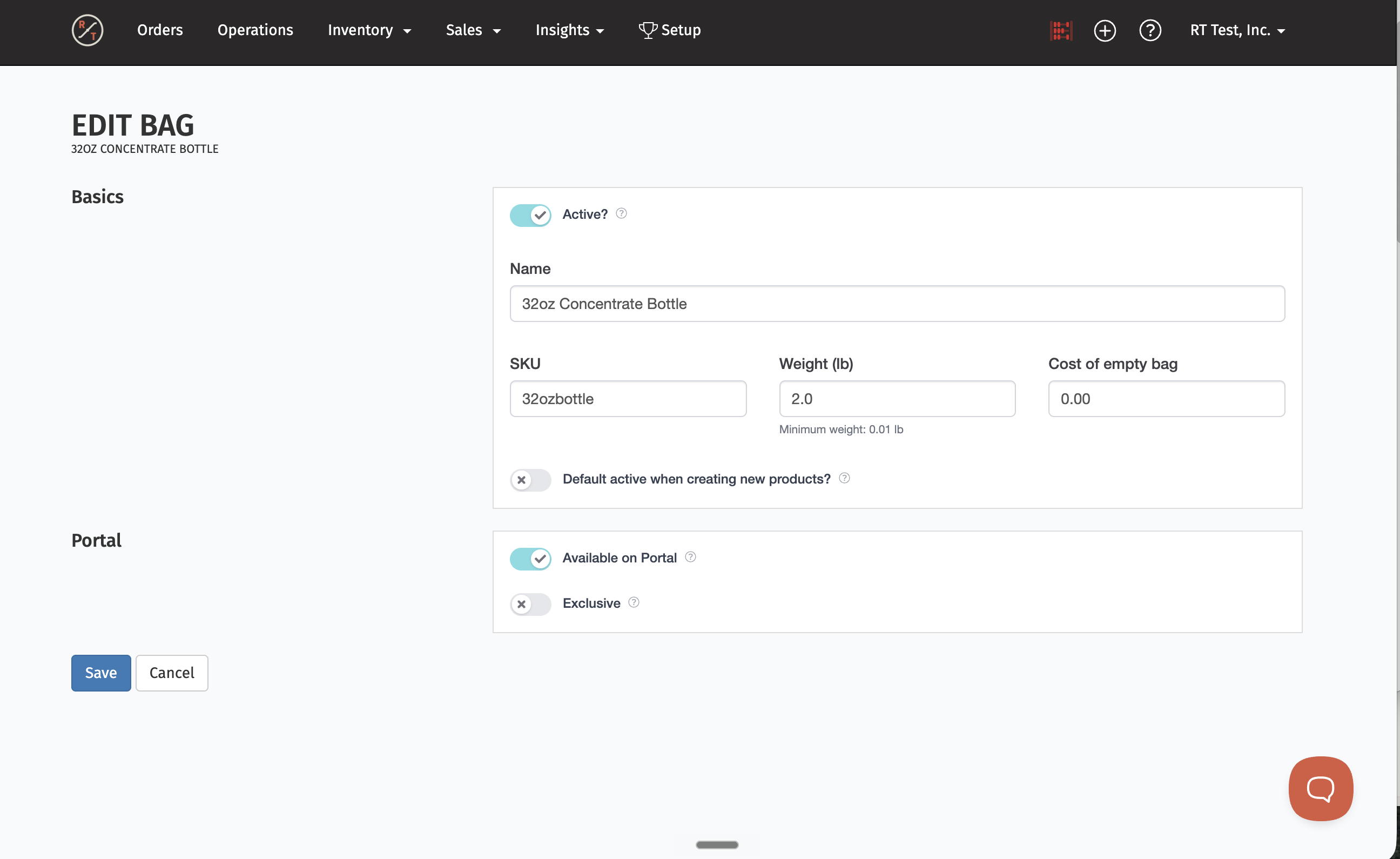
Step 2 — Create a production bag
This bag size matches the weight of roasted coffee in one cold brew batch.
Note: If you already have a bag at the right weight (e.g., 5 lbs), you don't need a new one. Skip to Step 3.
- Go to Inventory > Bags and click New Bag.
- Name it clearly — for example, Cold Brew Production – 25 lb.
- Enter the batch weight in the Weight field.
- Make the bag exclusive to the internal customer from Step 1.
- Don't set this bag as a default — it should only appear on your internal production product.
- Save.
Step 3 — Create the cold brew production coffee variant
This is a dedicated coffee variant for the beans used in cold brew production. You have two options:
Option A: Add the variant to an existing cold brew product (e.g., Cold Brew Blend)
- Activate the cold brew production bag as a variant on the existing product.
- Because the bag is exclusive to your internal customer (from Step 2), it won't show up for other customers.
Option B: Create a new product just for cold brew production
- Go to Inventory > Products and click New > Coffee Product.
- Name it — for example, Cold Brew Production Beans.
- Set the recipe to the roast or blend you use for cold brew.
- Make the product exclusive to the internal customer from Step 1.
- Set portal visibility to Not available on portal.
- Activate only the cold brew bag from Step 2 (and only the grind combo you want, if any).
- Save.
Step 4 — Set up your finished cold brew products as non-coffee items
These are the products your wholesale customers actually order. Create one for each cold brew product you sell.
- Go to Inventory > Products > New > Other and create a product for each finished form — for example, Cold Brew Keg – 5 gal, Cold Brew Growler – 64 oz, Cold Brew Can – 12 oz Case.
- Set wholesale prices, portal visibility, and any other product details.
- Save.
Ongoing production workflow
Once setup is complete, these are the steps you'll follow every time you produce cold brew.
Step 1 — Place a production order from the internal customer
A few different triggers might tell you it's time to place a production order:
- Inventory of finished cold brew is running low.
- An order came in and you need to produce more.
- It's your scheduled production day.
To place the order:
- Create a new order under the internal customer (the one you set up in Setup Step 1).
- Add the cold brew production coffee product with the production bag.
- Set quantity to the number of batches needed (one unit = one batch).
- Approve the order.
- The order runs through normal production — your team will complete the tasks to roast and/or blend the coffee like any other order.
Tip: Decide as a team who places these orders and when. Some roasters work on a standing weekly schedule; others trigger production when finished inventory drops below a threshold.
Step 2 — Brew and package the cold brew
This step happens outside RoasterTools.
After the beans are roasted (and blended if needed) from Step 1, your team will:
- Brew the liquid cold brew.
- Package it into its final forms (kegs, cans, growlers, etc.).
Step 3 — Update finished inventory in RoasterTools
This is what makes the finished cold brew available to fulfill wholesale orders.
- Go to Operations Dashboard > Inventory > Variants and search for the cold brew product name.
- Manually adjust the inventory to reflect the quantity you produced.
Important: Inventory for non-coffee products doesn't update automatically. Update counts right after each production run, or wholesale orders won't have stock to draw from.
Step 4 — Fulfill orders
You now have inventory of the finished cold brew products to fulfill wholesale orders as they come in. No extra steps needed — orders pull from the inventory you just updated.
Tips & FAQs
Q: Will wholesale customers see the internal customer account or the production bag in the portal?
A: No. The internal customer isn't connected to the Wholesale Portal, and the production bag is exclusive to that customer. Wholesale customers only see the finished non-coffee products you set up in Setup Step 4.
Q: Where does the actual brewing happen in this workflow?
A: Outside RoasterTools. After the beans are roasted (via the internal production order), your team brews the cold brew and packages it into kegs, cans, growlers, etc. The manual inventory update in Ongoing Step 3 is what makes the finished product available to wholesale customers.
Q: Do I need a separate non-coffee product for every packaging format?
A: You can either create separate non-coffee products, or one cold brew product with multiple variants using option sets. Either way, each format (keg, can, growler, bottle) is its own variant so you can track inventory and fulfill orders separately.
Q: Do I need to repeat setup for each roast I use for production?
A: If you use different roasts for different finished products (e.g., one blend for cold brew, another for something else), each roast needs its own internal coffee product following Setup Step 3.
Q: Can I use a grind other than whole bean for the production bag?
A: Yes. Activate whichever grind matches your brewing process — coarse grind is common for cold brew. Leave other grinds inactive on that bag.
Q: Why does this workflow use an internal customer? Couldn't we just track production directly?
A: The internal customer gives RoasterTools a way to roast beans and route them to cold brew production — the beans come out of your inventory when the internal order is fulfilled. It's how the system tracks where roasted coffee is going.
Q: Can I switch between bulk and on-demand later?
A: Yes. They're separate products, so you can switch by deactivating the version you're not using.
Learn More: For cold brew brewed only when an order comes in, see Cold Brew On-Demand. For sending beans to a co-packer for K-cups, frac packs, or brew bags, see Co-Packed Products.